

Explore our new Cybersecurity Terms Glossary, explained by our experts.

Explore our new Cybersecurity Terms Glossary, explained by our experts.
Cybersecurity Terms Glossary
Part 2 of our Nmap guide covers port states, SYN, UDP, idle and other scan techniques, port selection, timing templates, service version detection, and OS fingerprinting.

What Is Nmap? Basic and Advanced Usage – Part 2
Nmap is an open-source tool for network scanning and vulnerability detection. It can scan large numbers of systems and returns results that are flexible, fast, and meaningful. It tells you, among other things, whether hosts are up, the state of their ports, which services are running, and which operating system is in use. You can also use Nmap to gather information about the services it detects and to find out whether those services contain security vulnerabilities.
Nmap also ships with a library of scripts. When these scripts are run against a target, they return detailed information about the system and report whether vulnerabilities are present. It is widely regarded as one of the best tools in its field.
Computers and information systems communicate with one another through connection points, and each of these connection points is called a port. Depending on the type of communication, specific protocols are used, and traffic flows over the ports allocated to those protocols. Ports are the points through which input and output enter and leave an information system. Nmap works with the two protocols that use ports.
These protocols are TCP and UDP. For each protocol, a connection is defined by four elements: the source IP address, the destination IP address, the source port, and the destination port. The protocol itself is an 8-bit field that states what type of packet is carried in the IP data section. IPv4 addresses are 32 bits long, IPv6 addresses are 128 bits long, and ports are 16 bits long. Because the port number field is 16 bits wide, 65,535 port numbers are available. The lowest value, 0, is invalid: specifying port 0 acts as a wildcard and lets the system assign a port on its own. Attackers carrying out malicious listening often listen on port 0. Nmap scans port zero only when you specify it explicitly (-p0-65535).
Port 80 (HTTP): One of the most frequently used TCP ports. By default, it is the port a client uses to connect to web pages.
Port 23 (Telnet): Telnet lets a client connect to a machine on the internet over unencrypted communication. Because the traffic is unencrypted, it is not secure, but it can still be found running as a management port on routers.
Port 443 (HTTPS): The standard HTTP protocol encrypted with SSL, which makes the communication more secure. Requests to web servers are sent encrypted.
Port 21 (FTP): The File Transfer Protocol. As with Telnet, data is transferred in clear text without encryption. It is not a secure protocol, yet it is still in use.
Port 22 (SSH): Known as Secure Shell, this is a management protocol that lets users control and configure servers over the internet. It provides encrypted communication with the remote machine.
Port 25 (SMTP): The protocol used for sending email.
Port 53 (DNS): The Domain Name System translates between domain names and the IP addresses they point to. This port can be used over both TCP and UDP.
Port 67 (DHCPS): Known as the Dynamic Host Configuration Protocol server, it assigns IP addresses to client machines joining the network. It runs over UDP.
Port 68 (DHCPC): The DHCP client port. It runs over UDP.
Port 69 (TFTP): A simple file transfer protocol over UDP, known as the Trivial File Transfer Protocol.
Port 110 (POP3): Known as Post Office Protocol version 3, it is used by local email clients to communicate with remote email servers. It can download email from a remote server and keep a copy locally.
Port 135 (MSRPC): Microsoft Remote Procedure Call. It is used for communication between server and client and allows code to be executed remotely.
Port 139 (NetBIOS-SSN): A TCP port that provides the NetBIOS Session Service, used to communicate with Microsoft Windows services.
Port 445 (SMB): Used by the Server Message Block protocol. SMB is a protocol for file sharing.
Port 143 (IMAP): Used by the Internet Message Access Protocol, a TCP protocol that lets email messages be managed directly on the server.
Port 995 (POP3S): POP3 with SSL added, which makes the communication more secure.
Port 993 (IMAPS): IMAP with SSL added to provide more secure communication.
Port 5900 (VNC): A TCP port used by a graphical desktop-sharing system over an insecure connection.
Port 3389 (ms-term-server): Known as the Remote Desktop Protocol (RDP), a TCP protocol for remote desktop connections. The port can be changed at network level to make the connection harder to find.
Port 3306 (MySQL): A TCP port used to communicate with MySQL databases.
Port 1433 (MSSQL): A TCP port used to communicate with Microsoft SQL Server databases. The MS-SQL-DS service on UDP port 1434 performs related functions.
Port 8080 (HTTP-Proxy): An alternative TCP port used for HTTP proxies and web servers.
Port 1723 (PPTP): Provides the infrastructure for connecting securely to VPNs.
Port 161 (SNMP): Used by the Simple Network Management Protocol, a UDP protocol for managing network components and devices with a network card, such as UPS units.
A port scan is the process of testing a target remotely to determine the state of its ports. If a port is open, the connections on it can be observed to find out whether they are secure and which services are handling them. A port can be in one of the following states.
Open: The port is open. Open ports usually have services running on them.
Closed: The port is closed.
Filtered: Nmap cannot determine whether the port is open, because packet filtering prevents its probes from reaching the port.
Unfiltered: The port is reachable, but Nmap cannot determine whether it is open or closed.
Open|Filtered: Nmap cannot tell whether the port is open or filtered.
Closed|Filtered: Nmap cannot tell whether the port is closed or filtered.

As Figure 4.2 shows, the scan results list the ports as open under the STATE heading. Open ports tell you whether services are running on a system, and you can go further and scan an open port to check whether it is vulnerable. That is why open ports must be kept under control. System and network administrators should filter the open ports in use to protect their systems, and close any port that is not needed.
When a port scan finds an open port, the service running on it is identified and then researched for known weaknesses. If that research suggests a vulnerability may exist, a vulnerability scan is run. If the vulnerability scan reports that the service version is vulnerable, an exploitation attempt is made to confirm it. In the hands of an attacker, these same steps can cause critical damage to the target system.
By default, Nmap scans the 1,000 ports defined in its database. These scans usually finish quickly, and you can adjust the scan type to shorten them further. The -n option tells Nmap not to perform DNS resolution, which saves time and still returns the port results.

Figure 4.2.1 shows a general Nmap scan. The results show that scanning a single IP address took 45.79 seconds.
To specify ports, use the -p option. A scan with -p0- covers all 65,535 ports on the target. Against one machine this may not take very long, but scanning a whole network instead of a single machine can take hours, because 65,535 ports are scanned instead of the default 1,000.

Figure 4.2.2 shows a comprehensive Nmap scan. The -v option makes Nmap print detailed output to the screen. The -A option runs an aggressive scan, which combines port scanning, service version detection, and operating system detection, and also runs NSE scripts. The -T4 value controls the timing of the scan. One feature of -T is its timeout: if a target takes longer to respond than the set limit, the request times out and Nmap moves on to the next machine.
Choosing the right port scanning technique matters a great deal, because a scan needs to be not only fast but also successful and consistent.
This is the most popular scan type, because it is the fastest way to scan TCP ports. Nmap sends the target a TCP packet with the SYN flag set and decides from the reply whether the port is open. If the SYN packet is answered with a SYN/ACK packet, the port is open. If the reply is an RST packet, the port is closed. If no reply arrives, the port is reported as filtered. When a SYN/ACK is received, Nmap sends an RST packet back and drops the connection.

As Figure 4.3.1.b shows, a TCP SYN scan was run against the target IP address with the -sS option. The scan finished in 2.04 seconds and found 4 open ports, 40 filtered ports, and 956 closed ports. The 40 ports were marked as filtered because they did not respond to the SYN packet.
A TCP Connect scan is typically used by unprivileged users on Unix machines and against IPv6 targets. It is also used when a TCP SYN scan does not work or is not sufficient. Nmap asks the operating system to establish a connection with the target port through the connect system call, and the port scan is carried out that way.

In Figure 4.3.2, a TCP Connect scan was run with the -sT option, and -v was added to show each step in detail. First, an ARP ping scan confirmed that the machine was up. Next, DNS resolution was performed. After that, the Connect scan ran and the open ports were found.
Scanning only TCP ports is not enough, because UDP ports have vulnerabilities too. The most popular services may run over TCP, but plenty of services run over UDP, including DNS, SNMP, and DHCP. Because UDP scanning is slower and harder than TCP scanning, security professionals often make the mistake of skipping it. System and network administrators also tend to put fewer security controls on UDP ports. Taken together, this makes vulnerabilities in UDP services more likely.
To run a UDP scan in Nmap, use the -sU option. Nmap sends UDP packets to detect UDP ports, but unless you use --data, --data-string, or --data-length, those packets are sent empty. If the reply is an ICMP port unreachable error, the port is closed. If the reply is a UDP packet, the port is open. If no reply is received, the port may be open or filtered. For faster UDP scans, to skip slow hosts and to get past firewalls, the --host-timeout option is used.

In Figure 4.3.3, some of the UDP packets sent received no reply, so Nmap reported those ports as open|filtered. To find the version of the services running on open UDP ports, use the -sV option.
A TCP NULL scan, run with -sN, sends an empty TCP packet in which the TCP flag header value is 0. A TCP FIN scan, run with -sF, sets only the TCP FIN bit. A TCP Xmas scan, run with -sX, sets the FIN, PSH, and URG flags.
The main advantage of these scan types is that they can sneak through stateless firewalls and packet-filtering routers. Such firewalls block TCP packets that have the SYN bit set and the ACK bit cleared. Because NULL, FIN, and Xmas scans leave the SYN bit cleared, they can get around this rule. They are also stealthier than a TCP SYN scan.

Figure 4.3.4.a shows a TCP NULL scan. The default 1,000 ports were scanned and no open ports were found. The -n option was used to skip reverse DNS resolution, and -v to show detailed output. Some of the probes sent during the scan were dropped because of latency.

Figure 4.3.4.b shows a TCP FIN scan. Again, the default 1,000 ports were scanned and no open ports were found.
Stateful firewalls track the flow, state, and characteristics of network connections. The TCP ACK scan is used to map firewall rule sets: it shows whether a firewall is stateful and which ports are filtered. Its drawback is that it cannot tell whether a port is open or closed.
It cannot make that distinction because both open and closed ports reply with an RST packet. Nmap marks this reply as unfiltered, which means the ACK packets reached the target machine and the port is reachable.

Figure 4.3.5 shows a TCP ACK scan, which is run with the -sA option. As the figure shows, some of the probes were dropped. This happens with every scan type: if a probe is delayed in transit, it can be lost on the network.
This scan type is similar to the TCP ACK scan. Instead of marking the RST replies as unfiltered, Nmap examines the TCP Window field of each RST packet. A positive window marks the port as open, and a zero window marks it as closed. Because this scan relies on implementation details of a small number of systems on the internet, it is rarely used and cannot always be trusted.

Figure 4.3.6 shows a TCP Window scan run with the -sW option.
This scan type is similar to the FIN, NULL, and Xmas scans. The difference is that the probe sent to the target is FIN/ACK. It is a stealthy, firewall-evading scan that sets the TCP FIN and ACK flags, and it can be used to get past packet-filtering firewalls.

This method makes it possible to run a blind TCP scan against a target. It is called blind because none of the packets sent to the target carry the IP address of the machine running the scan. Instead, a side-channel technique is used: a suitable zombie machine on the network is identified, and its predictable IP fragmentation ID sequence is exploited. TCP Idle Scan is the stealthiest scan type available, but it is also slow and complex.

As Figure 4.3.8.a shows, in a TCP Idle Scan the state of each port is worked out from changes in the zombie’s IP ID value.
Determining an open port:
Determining a closed port:
Determining a filtered port:

As Figure 4.3.8.b shows, the -sI option is all you need to start a TCP Idle Scan. The IP address that follows the option is the zombie’s. By default, port 80 is used, but you can specify one of the zombie’s open ports in the format IP:Port if you wish. The target machine’s IP address comes after the zombie’s, followed by any other options the scan requires. In this example, -Pn was used to scan without pinging. Capturing the traffic in Wireshark shows that the scan was carried out through the zombie machine.
Technically, this is not a port scan. It is used to find out which IP protocols are supported on the target system. With this scan, the -p option takes protocol numbers instead of port numbers, and the -sO option tells Nmap that -p refers to protocols rather than ports. The IP protocol scan is then run against the protocol numbers given to -p. The output looks much like the normal format, except that protocols are listed where port numbers would normally appear.

Figure 4.3.9 shows two scans with different settings. The first command uses -sO to request a protocol scan, with the protocol number passed to -p. The -v option was used for detailed output and -n to skip DNS resolution. The second command runs a port scan. In the first scan, protocol 135 was scanned without checking for TCP, and its state was marked as open|filtered. The first scan also needed no extra option for service detection: by default, it reports the service associated with the protocol. In the output of the second scan, the default PORT heading appears instead of PROTOCOL, listing 135/tcp with the state open. To detect the version of the service running on the port, use the -sV option.
The FTP protocol supports proxy FTP connections. This feature lets a user connect to one FTP server and then ask it to send files to a third-party server. Because attackers have abused this feature, few servers still support it. Another weakness is that the FTP server can be used to scan other hosts: the scan asks the FTP server to send a file to each port of the target host in turn, and the error message returned shows whether the port is open. This can be used to bypass firewalls, because organisational FTP servers are often placed where they can reach every other host on the network. The scan is run with the -b option, which takes an argument in the format username:password@ftpserver_IP:port. If no port number is given, port 21 is used by default. To get past a firewall, you can also scan only port 21 and use the ftp-bounce NSE script.

Figure 4.3.10 shows the scan being carried out. Running an FTP Bounce scan is itself regarded as an attack, because a vulnerable FTP server can easily be used to port scan other machines and send files to them.
This scan type is the SCTP equivalent of a TCP SYN scan. On a network without obstructions, it can scan thousands of ports per second. Like a TCP SYN scan, an INIT scan never completes SCTP associations, so it is relatively stealthy and unobtrusive.

As Figure 4.3.11 shows, the scan is started with the -sY option. This technique is often called half-open scanning, because a full SCTP association is never opened. Nmap sends an INIT chunk, as if it were opening a real association, and waits for the target to respond. An INIT-ACK chunk means the port is open, and an ABORT chunk means it is closed. If no response arrives after several INIT chunks, the port is reported as filtered.
This is a more advanced SCTP scan. Its advantage over the INIT scan is that it is less likely to be recognised as a port scan. Its drawback is that it cannot distinguish open ports from filtered ones. Otherwise, as with the SCTP INIT scan, a port is reported as closed when an ABORT response is received.
To choose your own combination of TCP flags, use the --scanflags option, which can be helpful for bypassing firewalls. You can pass it the names of TCP flags or the numeric value that represents them. For example, the number 9 means the PSH and FIN flags are set together. If no scan type is specified alongside it, a SYN scan is run by default.

As Figure 4.3.13 shows, a custom scan was run with the --scanflags option. Because no additional scan type was selected, a SYN scan was performed by default.
By default, Nmap scans the 1,000 most popular ports. If you ask for a fast scan with the -F option, it scans the 100 most popular ports instead, and the --top-ports option scans a given number of the most popular ports. Beyond popular ports, you can use the -p option to specify a port number, a range of ports, or protocol numbers. The -p option can be used as follows:
-p 445: Scans only the SMB port.
-p ssh: Scans port 22, on which the SSH service runs.
-p 22,25,80: Scans several ports. If -sS is used with this option, only TCP ports are scanned; with -sU, UDP ports are scanned.
-p 22-89,110: Scans the ports from 22 to 89 and port 110.
-p-: Scans all 65,535 ports (equivalent to -p0-).
-pT:22,U:53: Scans TCP port 22 and UDP port 53.
-p http*: Scans the ports of all services whose names begin with “http”.
The examples above all use the -p option. Other options that are useful for port scanning are listed below:
--exclude-ports 20-30: Excludes ports 20 to 30 from the scan.
-F: Runs a fast port scan, covering the 100 most popular ports instead of the default 1,000.
-r: Nmap randomises the order of ports by default. This option makes it scan them in sequential order.
--port-ratio: Scans ports according to how frequently they are used. The value must be between 0 and 1.
--top-ports: Sets the number of popular ports to scan.
Speed and time are important when Nmap scans the ports of target systems, especially on large networks. Scans also need to be efficient and perform well. Some of the timing options used in port scanning are listed below:
--min-rtt-timeout, --max-rtt-timeout, --initial-rtt-timeout: Set the minimum, maximum, and initial time allowed for probes to receive a response. Figure 4.4.1 shows these options in use.

--host-timeout: The maximum time allowed for scanning each host. When the timeout is reached, the scan of that host is abandoned.
--min-rate, --max-rate: Set how many probes are sent per second.
--max-retries: Sets the maximum number of retransmissions for a single port.
--min-hostgroup, --max-hostgroup: Set the minimum and maximum number of hosts scanned in parallel.
--min-parallelism, --max-parallelism: Set the minimum and maximum number of probes sent in parallel.
--scan-delay, --max-scan-delay: Set the delay between probes sent during the scan. This needs care, because on a large scan any added delay can lengthen the scan time considerably.
--defeat-rst-ratelimit: Useful when you only care about open ports. It tells Nmap to ignore RST rate limits. Because Nmap no longer waits long for RST replies, some ports may appear unresponsive, which can reduce accuracy.
--defeat-icmp-ratelimit: Trades accuracy for speed by increasing UDP scan speed against hosts that rate-limit ICMP error messages. Unresponsive ports are marked as closed|filtered instead of the default open|filtered.
--nsock-engine epoll|kqueue|poll|select: Forces the use of a specific nsock IO multiplexing engine. You can see which engines your build supports with nmap -V.
When you scan large networks with Nmap, performance needs to be optimised. Done well, this gets you results in a short time. One of the most important ways to do it is to identify live hosts in advance with the -sn option. That way, Nmap does not waste time port scanning hosts that are down, and the scan finishes quickly. By default, Nmap scans the 1,000 most common ports; to avoid unnecessary port scans, you can use the -p, -F, and --top-ports options. An aggressive scan with -A includes operating system detection, service version detection, traceroute, and port scanning. In such scans, options such as --osscan-limit and --max-os-tries stop OS detection from being repeated over and over. Unless you need it, use -n to skip DNS resolution, and use -Pn if you want to scan without pinging first.
To make sure scans finish on time and produce results, you can use the timing templates set with the -T option. It is better not to run a UDP scan together with a TCP scan, because the combined scan can run into ICMP error rate limiting. It is also important to keep Nmap up to date, because its developers improve and optimise the tool all the time. Finally, more bandwidth and CPU power can be used to reduce the load on Nmap.
In Nmap, scan timing can be set with the -T option. You give -T a value according to the kind of scan you want to run against the target network, and these settings have been packaged into templates. There are six templates in total: paranoid (0), sneaky (1), polite (2), normal (3), aggressive (4), and insane (5). Each is selected with the -T option.

In Figure 4.6.a, the aggressive mode of -T was used. Version detection was performed with -sV, and DNS resolution was skipped with -n, which shortens the time the scan needs to finish.
Polite (2) mode slows the scan down to use less bandwidth and fewer resources on the target machine. Normal (3) mode, shown as -T3, is the default and does not change any timing settings. Aggressive (4) mode is quite fast: it speeds scans up on the assumption that you are on a reasonably fast and reliable network. Insane (5) mode assumes that you are on an extraordinarily fast network or are willing to sacrifice accuracy for speed. These templates let you tell Nmap how aggressive you want to be while leaving Nmap to choose the exact timing values. The templates also make some minor speed adjustments for which no fine-grained control options exist. For example, -T4 prevents the dynamic scan delay for TCP ports from exceeding 10 ms, and -T5 caps it at 5 ms. Templates can be combined with fine-grained controls, and the specific options you set override the template’s general timing values for those settings. When scanning reasonably modern and reliable networks, -T4 is a sensible choice.

Port scanning is one of Nmap’s most important features. But before you can check the open ports it finds for vulnerabilities, you first need to identify the services or applications running on them, and that is why service and application version detection is another of Nmap’s key features. To detect the versions of services and applications on the machines in a scanned network, use the -sV option. The aggressive scan run with -A also includes -sV. Figures 5.a and 5.b show the practical difference between -sV and -A.


Once Nmap has established that a port is open, it connects to it and listens for five seconds to see whether a service announces itself. Many services, including FTP, SSH, SMTP, Telnet, POP3, and IMAP servers, identify themselves in their initial welcome banner. Nmap calls this the “NULL probe”, because it simply listens for responses without sending any probe data. If any data is received, it is compared against the roughly 3,000 NULL probe signatures in the nmap-service-probes file. The regular expressions in these signatures can include substring matches that pull version numbers out of the response. This can take a little time, because Nmap waits five seconds for the result of each probe. One of the probes tests whether the target port uses SSL. If OpenSSL is available, Nmap connects over SSL and restarts the service scan to find out what is listening behind the encryption.
Nmap uses a precise algorithm to decide which probes to send. For TCP, the NULL probe is tried first. Probes whose rarity value is less than or equal to the current intensity level are then tried in the order defined in nmap-service-probes. As soon as a probe matches, the algorithm stops and the result is reported. The higher the intensity level you set for version detection, the more probes are tried. Nmap’s default intensity level is 7.

As Figure 5.c shows, the intensity of a version scan can be set to any value from 0 to 9. With an intensity of 0, only the NULL probe (for TCP) and the probes that list the port as one of their default ports are tried. Using --version-light is equivalent to an intensity of 2. To set the intensity to 9, you can use --version-all, which tries every probe, although service detection then takes much longer.
In the scan shown in Figure 5.d, -sV enables service version detection, -T4 sets the timing, -F limits the scan to the 100 most popular ports, and -d runs Nmap in debug mode. The --version-trace option prints detailed information about what happens during version detection.

In Figure 5.d, the SYN scan of the 100 ports has completed. Once the open ports have been found, a service scan is started against each of them in parallel. Figure 5.e shows TCP connection requests being made with the NULL probe.

In Figure 5.e, NULL probe connections were made successfully to the services on four ports.

In Figure 5.f, the version of the FTP service was identified using the NULL probe.

Figure 5.g shows a mail server detected on port 25. Normally you would not know what kind of mail server it is, but a closer look shows that the version information is ESMTP Postfix. Because the service has matched SMTP, Nmap only tries probes that can match SMTP servers.
When running version detection with -sV, use the --version-trace option to see in detail what Nmap does during detection.
Beyond finding open ports and the versions of the services running on them, Nmap offers some additional features. Two of these are RPC grinding and SSL tunnelling.
SunRPC (Sun Remote Procedure Call) is a common Unix protocol used by many services, including NFS. Nmap ships with an nmap-rpc database. Many RPC services use high-numbered ports or the UDP protocol. RPC grinding can be used to get past poorly configured firewalls. RPC services have had critical vulnerabilities that allow remote control and code execution.

Figure 5.1.1 shows that the host offers many RPC services, and these services are highly likely to be abused. Because RPC service information is so sensitive, many network administrators block port 111 to hide it. Nmap can still obtain this information in three steps by contacting the other RPC ports directly. First, it runs a TCP/UDP port scan to find open ports. Second, version detection identifies which of the open ports are running RPC services. Finally, Nmap’s RPC brute-force engine tries the RPC program entries in its nmap-rpc database, one after another, against the open ports where RPC services are running.
Nmap can detect the SSL encryption protocol and then open an encrypted session through which it carries out version detection.
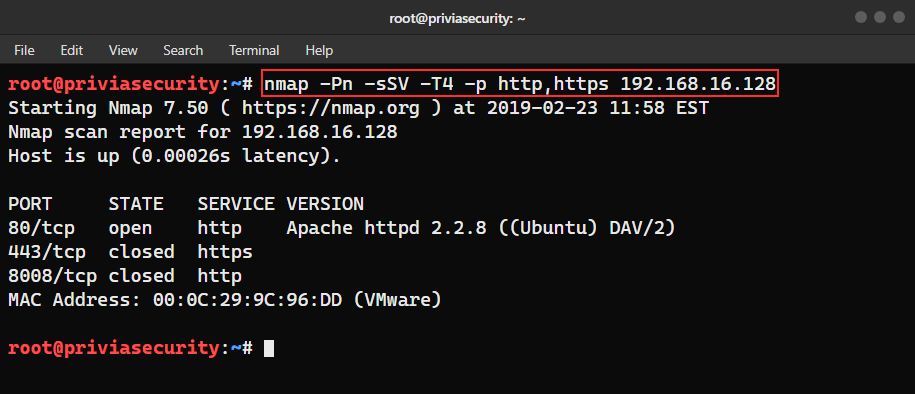
The scan in Figure 5.1.2 found that SSL was in use. If Nmap cannot handle the SSL layer, the SERVICE column shows “ssl/unknown”. Nmap uses the free OpenSSL libraries for SSL detection.
In security scans, finding open ports and the services behind them is not the whole story: identifying the operating system matters just as much, because reconnaissance and information gathering are a crucial phase of any security assessment. Knowing the name and version of the operating system makes it much easier to find the vulnerabilities the target system may have. In security testing, specialists find vulnerabilities and take control of target systems, then report their findings to the administrator responsible. If an attacker obtains the same operating system information, they can use the vulnerabilities they find to damage those systems. So even though disclosing operating system details may seem trivial, it is often the first step in a chain that ends with the system being compromised.
The reasons for detecting the operating system include:
Operating system detection is enabled with the -O option.

The Device type field classifies the host as one or more high-level device types, such as router, printer, firewall, or general purpose.
The Running field shows the operating system family (Windows or Linux, for example) and, where available, the operating system generation (such as 10 or 2.4.X). If there is more than one family, they are separated by commas. If there is no exact match, the field changes to JUST GUESSING, and an accuracy percentage is usually added after each operating system family.
The OS CPE field shows the Common Platform Enumeration (CPE) representation of the operating system. It may also include a CPE representation of the hardware type. Operating system CPEs begin with cpe:/o, while hardware CPEs begin with cpe:/h.
The OS details field gives a detailed description of each matching fingerprint.
The TCP Sequence Prediction field matters because systems with weak TCP initial sequence numbers are vulnerable to TCP spoofing attacks. An attacker can establish connections with such systems and send data while impersonating a different IP address.
The IP ID Sequence Generation field relates to the 16-bit ID field in IP packets. Depending on how they generate this field, many systems unwittingly reveal sensitive information about their traffic levels. This field describes the ID generation algorithm that Nmap was able to identify.
The Uptime guess field comes from the fact that, as part of OS detection, Nmap receives several SYN/ACK TCP packets in a row and checks their headers for a timestamp option.
The Network Distance field shows how many routers and hosts Nmap passed through to reach the target host.
The --osscan-limit option restricts operating system detection to promising targets. OS detection is far more effective when at least one open and one closed TCP port are found, and with this option Nmap does not attempt OS detection against hosts that do not meet these criteria. This can save a lot of time, particularly in -Pn scans against many hosts.

Figure 6.b shows a scan run with the --osscan-limit option. Sometimes OS detection cannot find a match. In such cases, the --osscan-guess or --fuzzy option makes Nmap guess the closest operating system, with a confidence level given as a percentage.

Figure 6.c shows the --fuzzy option in use. Here it was run against a single host and an operating system match was found. Had there been no match, the option would have displayed the closest result together with its confidence percentage.
The --max-os-tries option sets the maximum number of OS detection attempts against a target. When Nmap runs OS detection against a system and finds no match, it usually repeats the attempt. A lower value speeds up the scan, but reduces the chances of identifying the operating system.

In Figure 6.d, the maximum number of OS detection attempts was set to 10.
Nmap OS fingerprinting works by sending up to 16 TCP, UDP, and ICMP probes to known open and closed ports on the target machine. These probes are specially designed to exploit various ambiguities in the standard protocol RFCs. After sending the probes, Nmap listens for the responses. The attributes of the responses are analysed and combined to build a fingerprint. Every probe packet is tracked and resent at least once if there is no response. All the packets are IPv4 with a random IP ID value. Probes aimed at an open TCP port are skipped if no such port has been found. For closed TCP or UDP ports, Nmap first checks whether such a port has been found.
Nmap has a separate but similar OS detection engine for IPv6. Technically it works in much the same way: probes are sent, responses are received, and the responses are compared against a database. The differences lie in the specific probes used and in the matching style. IPv6 OS detection is used in the same way as IPv4 detection, except that the -6 and -O options must be used together.
You May Be Interested In These



We use a few cookies that are needed to make this website work, and they are always on. We would also like to set analytics cookies, to see which pages are useful; functional cookies, so that our live chat works; and advertising cookies, to measure our campaigns. We will not set any of those until you say yes, and you can change your mind at any time from the Cookie Settings link in the footer.
Choose the cookies you are happy for us to use. Strictly necessary cookies are always on; everything else is off until you turn it on.
These cookies keep the website working: they hold your security checks, your form submissions and the choice you make here. The site cannot run without them, so they are always on.
These let our live chat open and remember your conversation, and let the newsletter sign-up work. Switch them off and the chat window will not appear.
These tell us which pages are read and how people find us, so that we can improve the site. The reports are about groups of visitors, never about you personally.
These let us measure our advertising and show you our adverts on other websites, such as LinkedIn, Google and Meta. Switch them off and you will still see adverts, but they will be less relevant.


