

Privia Security was chosen as one of Türkiye's fastest growing companies!

Privia Security was chosen as one of Türkiye's fastest growing companies!
In cybersecurity, particularly in the area of networking, you need to be familiar with certain basic network utility programs. In our previous articles, we discussed IP addresses as well as network protocols and ports. In this article, we will discuss some network utility programs. Some of these applications work via a GUI on Windows, while others work via a command-line system on Unix / Linux. Anyone who wants to build a career in the field of cybersecurity is familiar with both Windows and Linux operating systems. For this reason, we will share the basic network applications with you by focusing on the commands. We also want to remind you that the following network utility applications work on both Windows and Linux versions.
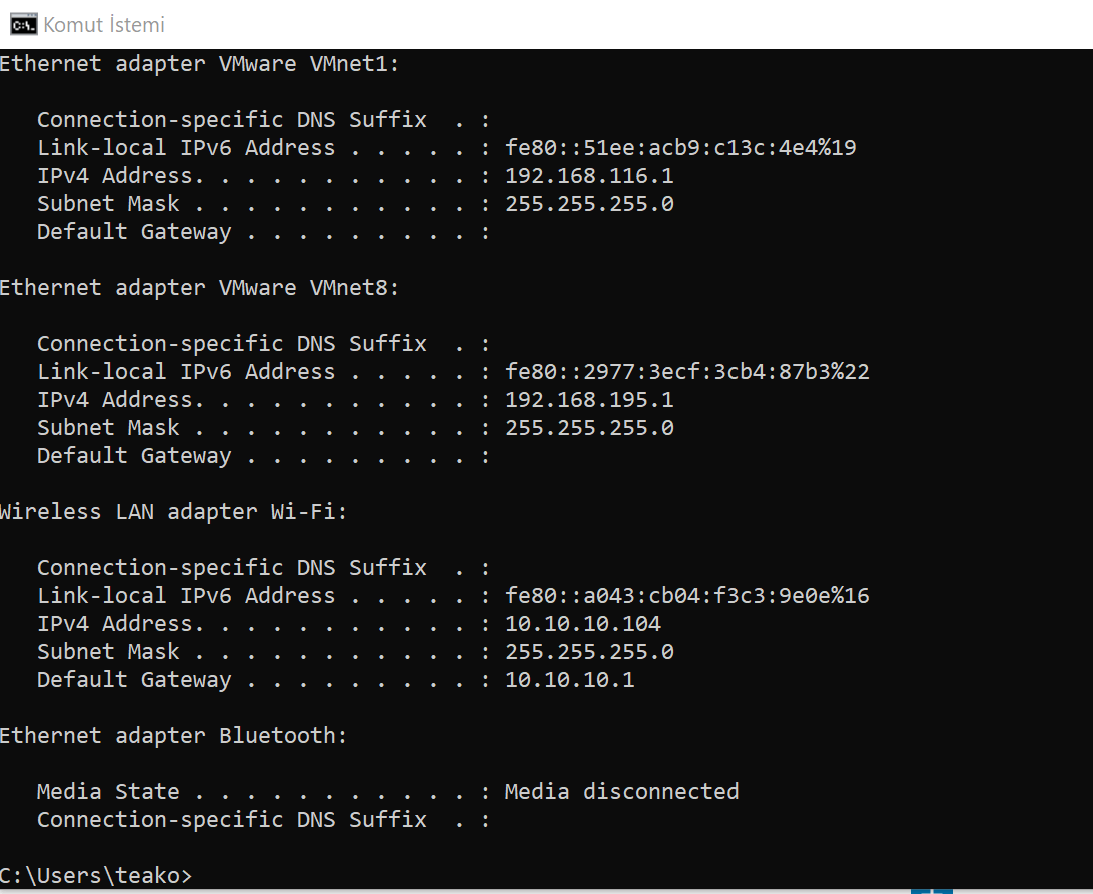
Even if you are using your own computer most of the time, you will need to gather information about the network configuration on your computer immediately before an infiltration attempt, as you will be on a different network. At this point, the first step to take is to run the ipconfig command on the console. When you run this command, you can get information about the Windows IP configuration with output like the following:
C:\Users\Priviasec>ipconfig
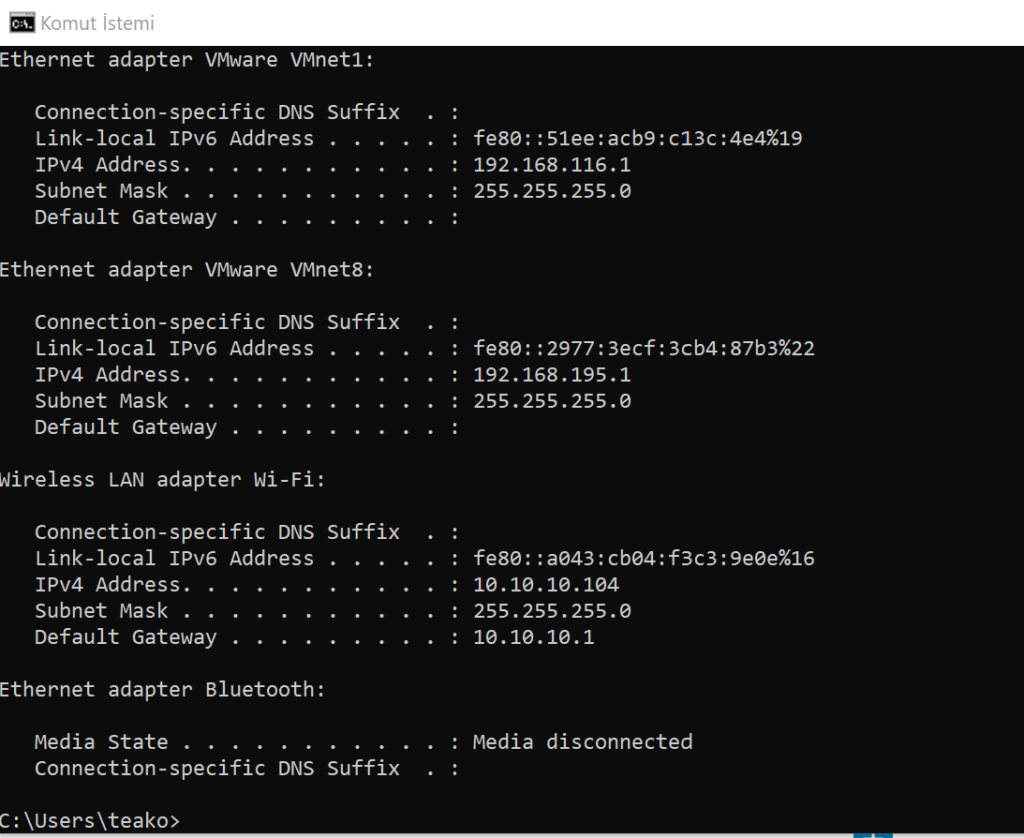
On Windows, we open the CMD screen as shown above by going to the Start menu and selecting Command Prompt. We then print our Ethernet configurations to the screen by running the ipconfig command. After typing ipconfig at the command prompt (remember that it is different in Linux), you will get output very similar to the screenshot above.
This command gives you information about your connection to a network (or the Internet). Most importantly, you can see your IP address on your own internal network. The command also has the IP address of your default gateway, which is your connection to the outside world. Running the ipconfig command is the first step in determining the network configuration of your system. Many commands, including ipconfig, have a set of parameters or flags that can be passed to them to make the computer behave in a certain way.
As you can see, you can use a number of options to find different details about your computer’s configuration. The most commonly used method will probably be ipconfig /all. This allows you to print all of your network configuration to the screen, showing all details of your network cards.
Another commonly used network command is ping. Ping sends a test packet to find out whether a machine can be reached and how long it takes for the packet to reach it. Through this command, we can gather some information from the response received from the target system.
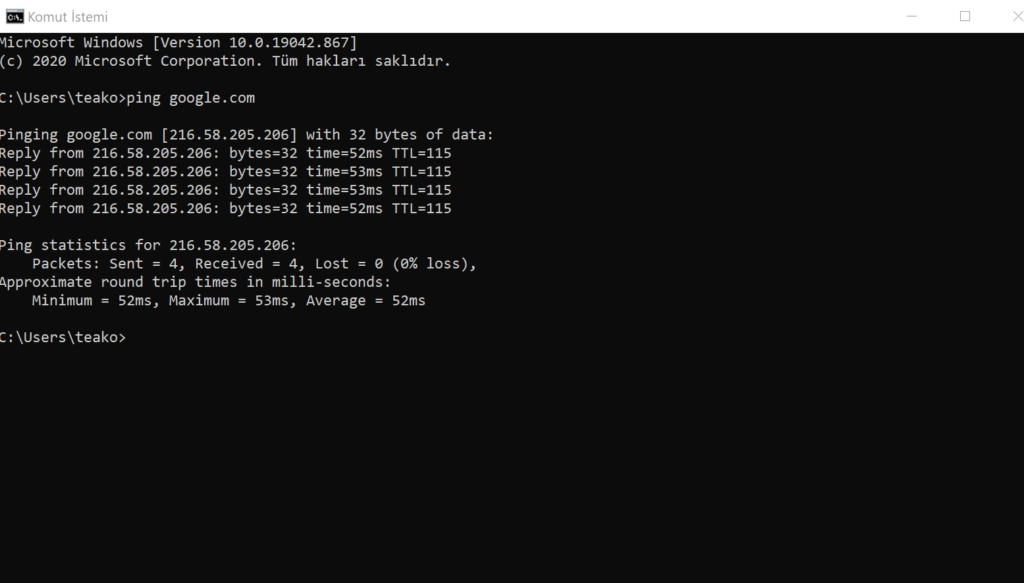
The command above shows that a 32-byte echo packet was sent to the target and returned. TTL “shows the life cycle of the packet, i.e. its waiting time.” This time unit specifies how many intermediate steps or hops the packet needs to travel to reach the destination before it is cancelled. Keep in mind that the Internet is a large network of interconnected networks. Your packet will probably not go directly to its destination. It needs to pass through several points to get there. The time shown here indicates the time elapsed until it reaches you. The statistics given at the end show whether there is any packet loss and the average times. A response with zero loss shows that there are no problems between your network connection and the target system. In some cases you will see packet loss. This reveals that there are problems on your network or between networks and that some packets are not reaching the other side or cannot reach you.
This command is a kind of “ping deluxe.” Tracert not only shows you whether the packet reached its destination and how long it took, but also all the intermediate hops required to get there. That is, just as with the ping command above, we mentioned that the response comes through many points. Tracert informs you of these transit points. The same command is also used in Linux or UNIX, but we want to remind you that it is used as traceroute instead of tracert.
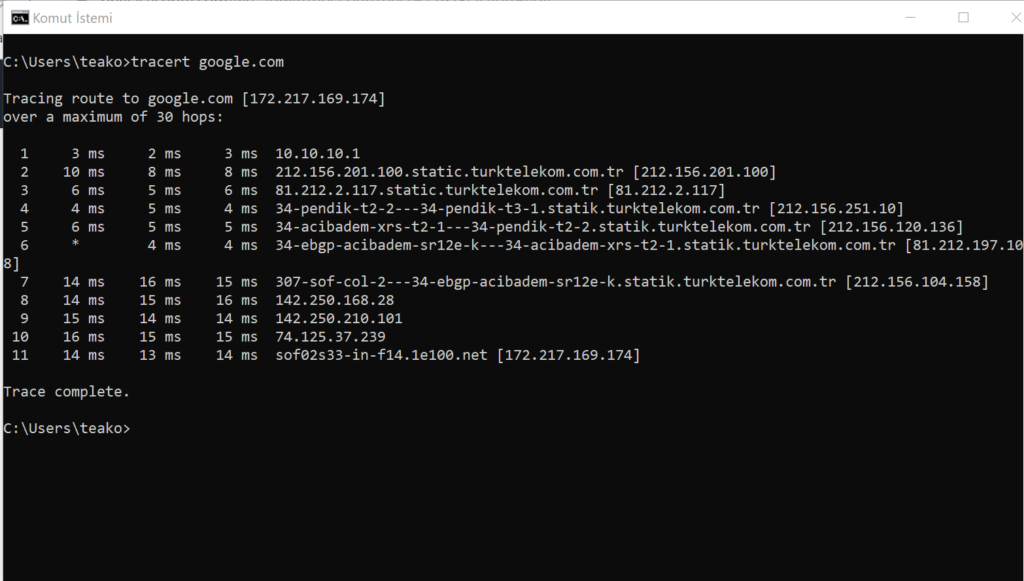
With tracert, you can see the time for each intermediate step listed and how long it took to reach that step (in milliseconds), along with the IP addresses of each intermediate step. Knowing the steps required to reach a destination can be very important for cybersecurity experts.
Netstat is another interesting network command. It appears as an abbreviation for Network Status. Basically, this command shows which connections your computer currently has. Don’t panic if you see several connections — it doesn’t mean hackers have infiltrated the system. You will see many private IP addresses. This means that internal communication is ongoing on your network. These connections show your browser, your applications and your other communications.
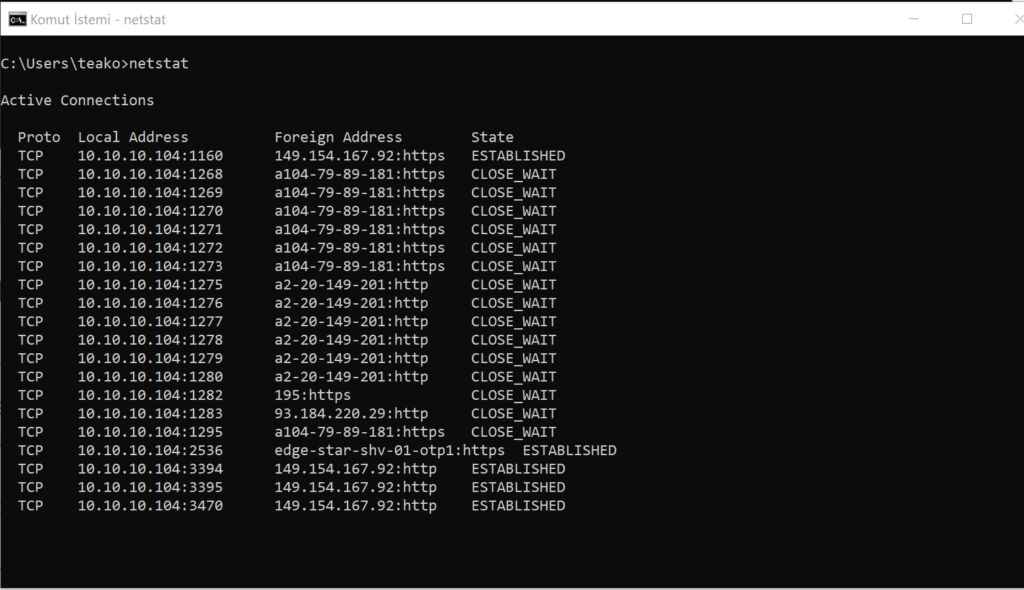
Undoubtedly, other utilities can also be used when working with network communications. However, the four basic utilities we just examined are the most important ones. These four (ipconfig, ping, tracert and netstat) are absolutely essential for any network administrator. These applications also have their own specific parameters.
You May Be Interested In These